
Templates
Templates
Write an email, PDF or layout once as a template and use it in any Send email or Generate PDF step in the project, so the wording lives in one place.
Templates are reusable email messages, PDF documents and layouts. Write one on the Templates page and choose it in any Send email or Generate PDF step in the project, so the wording and branding live in one place. Each step decides which answers fill the template’s values.
Templates here are not the starting points offered when you create a form or an automation. Those copy a ready-made form or automation once; see Quick start and Automations.
Kinds of template
| Kind | Use it for |
|---|---|
| Email message | The body of an email sent by an automation. |
| PDF document | A page turned into a PDF, such as a receipt or a quote. |
| Layout | A frame with your branding that wraps an email or PDF. It must include {{ content }} where the email or PDF goes. |
Email messages and PDF documents differ only in the content they start with. Either can be used in either step. The list shows them as Email or PDF.
Create a template
- Open a project and select Templates.
- Select New template.
- Under What is it for?, choose Email message, PDF document or Layout.
- Enter a Name. People see it when they choose a template in a step.
- Select Create template.
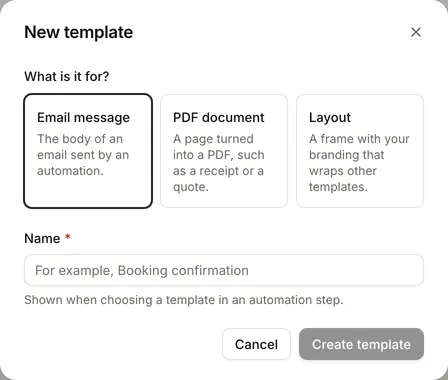
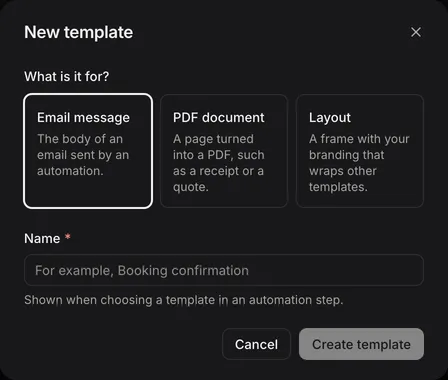
The template opens with example content to replace.
Edit a template
The editor has:
- Name and Description.
- Use as a layout. When it is on, the content must include
{{ content }}. If it is missing, select Insert placeholder to add it. - Content, with + Reference, + For loop and + If else above it, and a Visual or Plain switch. See Template syntax.
Beside the editor:
| Tab | Shows |
|---|---|
| Preview | The template as it will look. Highlighted words stand in for values filled in when an automation uses it. |
| Values | The template values it expects, such as template.customer.name. |
| Help | Short examples of values, sections that repeat and sections shown only in some cases. |
| Usage | Every automation step that uses the template. Each link opens that step in a new tab. |
Select Save when you are done. Leaving with unsaved changes asks whether to Stay, Discard, Save as copy or Save.
Template values
A template can get its values in two ways:
- Template values, written as
{{ template.customer.name }}. Each step that uses the template chooses what fills them, such as an answer, a fixed text or a calculation. This keeps the template independent of any one form. - Inserted values, added with + Reference, such as an answer from the current entry or a data table row. + Reference uses the first form in the project to list answers, and needs at least one form.
Prefer template values when several forms use the template, and for team fields or results of earlier steps, which + Reference doesn’t offer here.
The Values tab lists the template values the content uses. Renaming one changes what each step has to fill in.
Use a template in a step
In a Send email or Generate PDF step:
- Under Content, choose Template, then the template. Inline writes the content in the step instead.
- Under Layout, choose Default layout, No layout or Template layout and a layout. Send email starts with Default layout, the standard FormWork email frame. Generate PDF starts with No layout.
- Under Template data, fill each template value in Merge field mappings. Choose a value for each, such as an answer, with the same picker as elsewhere. See Inserting values.
- Test the automation. See Runs and testing.
A layout can wrap inline content too. Manage templates opens the Templates page in a new tab.
Change a template that is in use
Saving a template that steps use asks how to save:
- Save for immediate effect updates the template. Every step that uses it sends the new content straight away, without publishing the forms again.
- Save as copy saves your changes as a new template, named with “(Copy)”, and leaves the original as it was. Choose the copy in the steps you want to change.
Use Save as copy when a change should not reach every step at once.
Delete a template
On the Templates page, open the template’s menu and select Delete. Steps that use it need a new template, so check Usage first. This can’t be undone.
Where else templates appear
The same template language is used in email and PDF content written inside a step, Slack messages, the success message’s HTML template and content fields in Template mode. See Template syntax.