
Automations
Runs and testing
Test an automation before it goes live, follow each run step by step, find out why a run failed, and manage runs that are waiting or have failed.
Each time an automation starts, FormWork records a run: what started it, each step it took, what each step did and where it stopped. Test an automation before you publish, then use its runs to check it works and to find out why it didn’t.
Test an automation
Test in the editor’s header runs the automation as saved in the draft against a real entry, without side effects. Emails aren’t sent, requests to other systems and app actions aren’t made, and nothing is saved or moved.
- Open the automation and select Test. The automation needs a trigger first.
- Under Entry, search for and pick an entry. Entries not yet submitted are marked “Draft”. Every day / week automations have no entry, so the test runs without one.
- If the automation has several triggers, choose the Trigger to test.
- If it has a Wait, choose whether to Skip waits. With it on, each Wait says when it would end and the test carries on. With it off, the test stops at the first Wait.
- If it calls apps, fill in Extension responses: the Status code and Response body (JSON) each app action answers with, so you can try the steps after it.
- Select Run test.
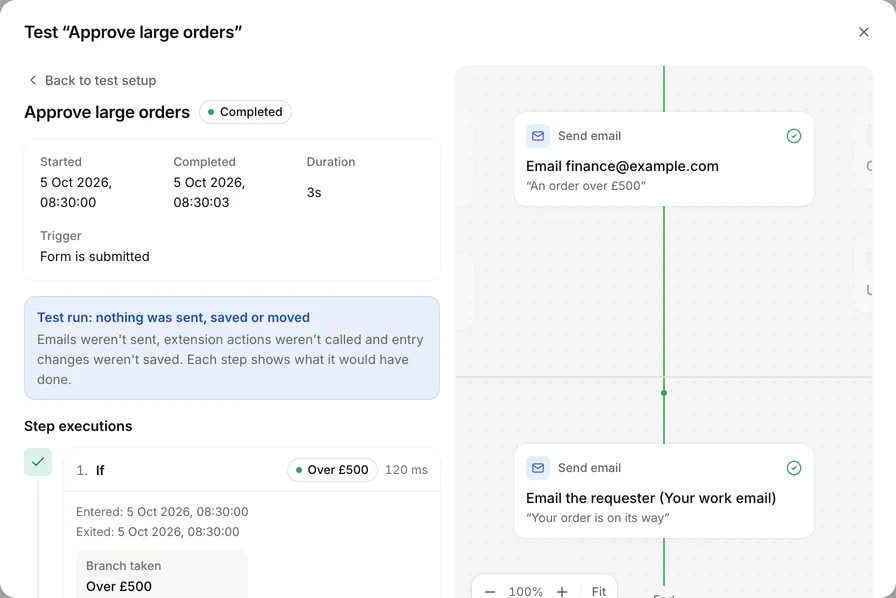
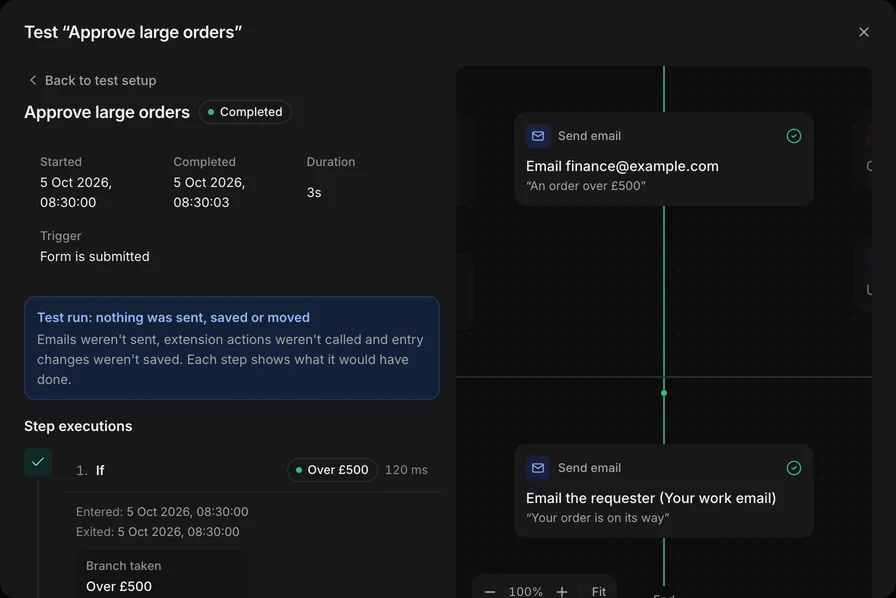
The result shows the run, with the banner “Test run: nothing was sent, saved or moved”. Each step shows what it would have done, such as the email it would have sent, the changes it would have made to the entry, “Would move to Approved” or “Would wait until …”. Test runs aren’t kept in the run history.
To try the real trigger, use Preview in the builder. Preview entries run the draft’s automations, except that a Wait ends the run and records when it would have ended. See Drafts and publishing.
See an automation’s runs
Open the automation and select Runs. When runs have failed today, the tab says how many.
Filter by All, Running, Waiting, Failed, Completed or Cancelled. Each row shows the entry, status, trigger, when it started and how long it took, or when a waiting run carries on. Runs of Every day / week automations show “No entry”.
The automations list also shows each automation’s last run, today’s runs and how many are waiting.
Run statuses
| Status | Meaning |
|---|---|
| Running | Its steps are running. Most runs finish within a few seconds. |
| Continued in the background | Its quick steps have run, and the rest are running in the background. |
| Waiting | It reached a Wait step and will carry on when the wait ends. |
| Completed | It finished, reached a Stop that ends the run as completed, or stopped at a failed step set to Stop, with the run completed. |
| Failed | A step failed and the run stopped, or it reached a Stop that ends the run as failed. See When a step fails. |
| Cancelled | It stopped while waiting: someone cancelled it, its Stop waiting if condition was met, or its entry was deleted. |
Read a run
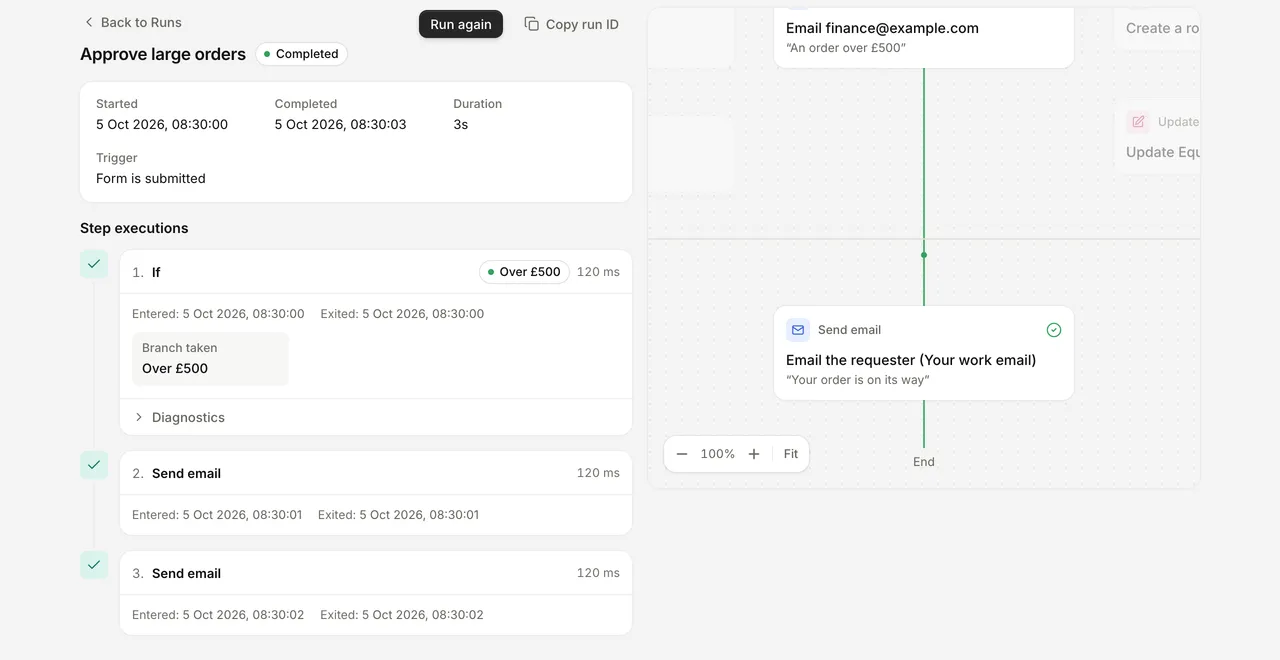
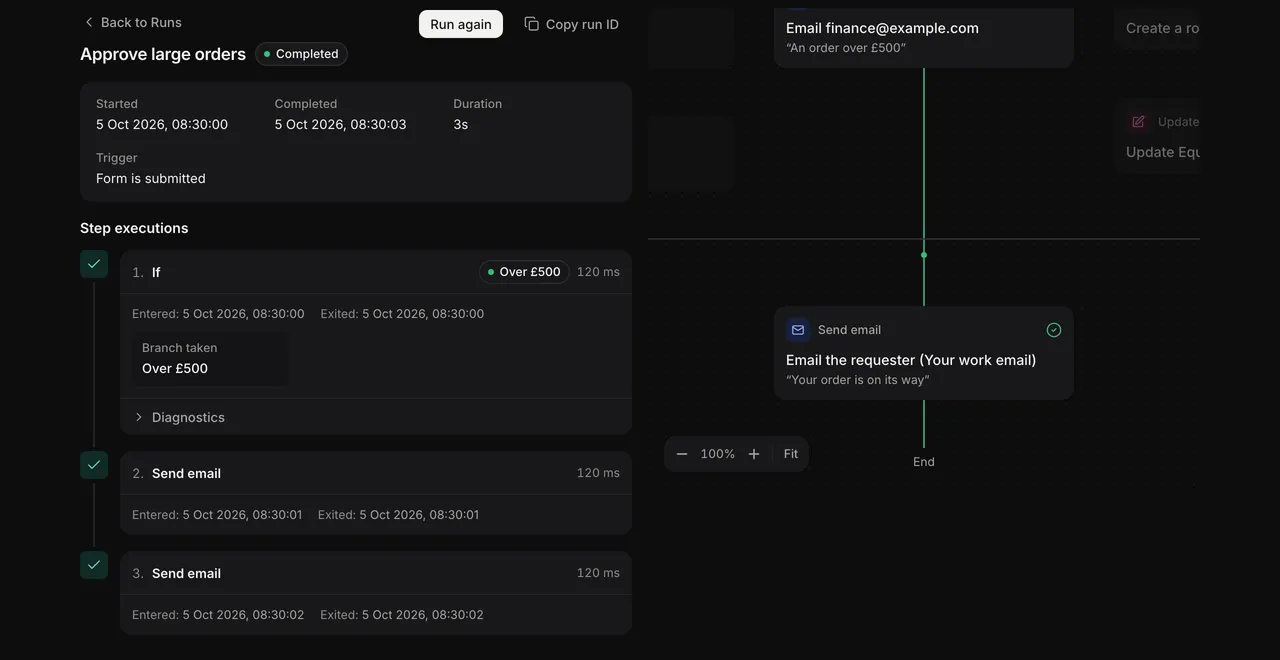
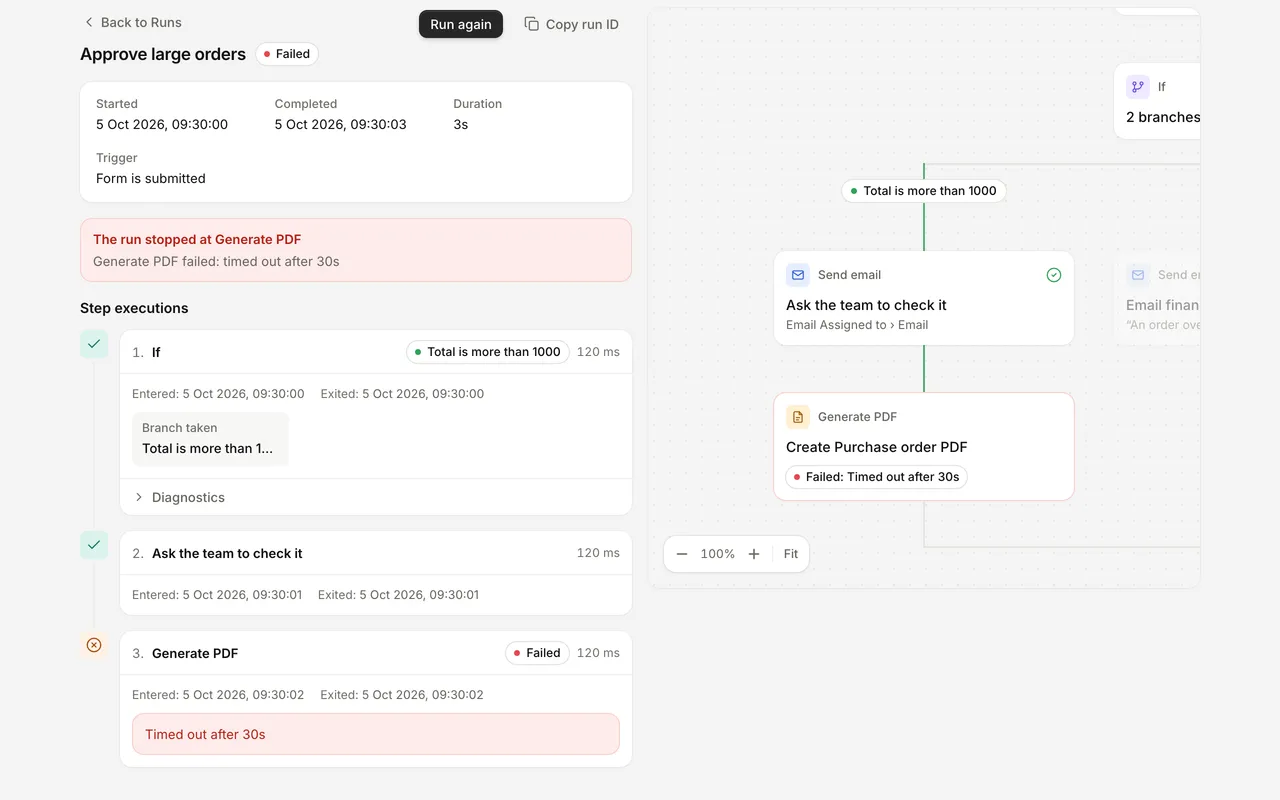
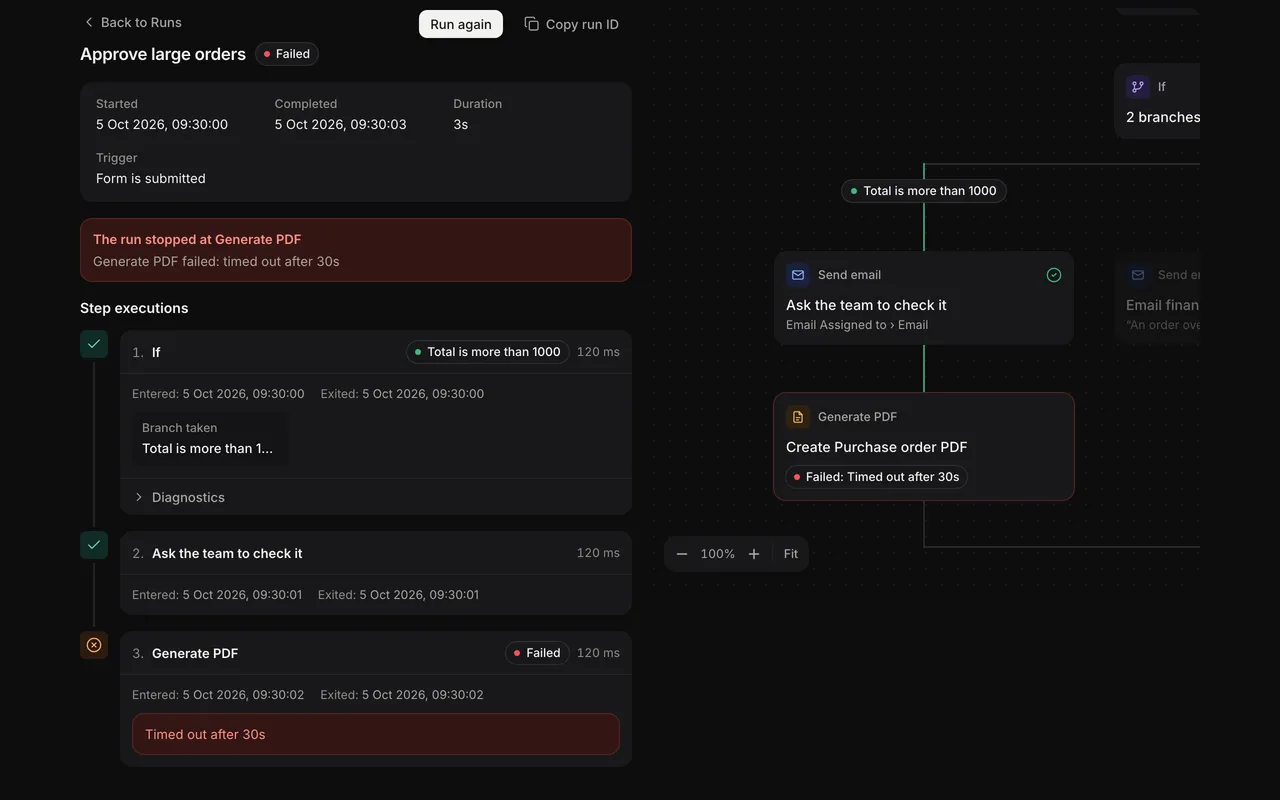
Select a run to open it. The flow is drawn next to a list of the steps that ran:
- Steps that ran have a tick, a failed step is marked, branches that weren’t taken are faded, and a waiting step shows when it carries on. An If it fails path opens by itself when its steps ran.
- Under Step executions, each step shows when it started and ended, which branch it took, and what it did: the email it sent, the answers it changed, the request it made. Input, Output and Diagnostics show the full details.
- Select a step’s name to find it on the flow, and the other way round.
The top of the run shows when it started and finished, how long it took and what triggered it. Runs started by a stage change say who or what moved the entry, and the move. Times are shown in your own timezone.
Find out why a run failed
- Open the failed run. The alert at the top names the step it stopped at and why. When a Stop ended the run as failed, its step says “Stopped, run marked as failed” and the alert gives the Stop’s reason.
- Check the trigger is the one you expected.
- Open the failed step and look at what it received under Input. A missing value often means the answer was empty or the step used the wrong one.
- For a step that called another system, look at the status and response.
- Fix the automation on the draft, test it, and publish.
A failed run doesn’t change the entry’s status.
A step that fails doesn’t always fail the run. When its When it fails is Stop, with the run completed or Carry on with the next step, the run shows as completed and no failure email is sent, but the step that failed and its If it fails steps still show in the run. See When a step fails.
To be told about failures, turn on Email admins when an automation run fails on the form’s Notifications page. See Notifications.
Run again
A run that completed, failed or was cancelled has Run again. It runs the published automation from the start for the same entry, so its emails, updates and other steps happen again. The new run links back to the earlier one.
It can’t run again when the form isn’t published, the published automation no longer has the trigger that started the run, or the entry has been deleted.
Waiting runs
A run that reaches a Wait step is saved and carries on when the wait ends, even if that is days later. While it waits, its step shows “Waiting until …”.
- Run now skips the wait and carries on straight away. Stop waiting if is still checked first.
- Cancel run (in the run’s menu) stops it. The steps after the wait never run. You can’t undo this.
To cancel several, filter by Waiting, tick the runs and select Cancel runs.
When a wait ends, FormWork checks the Wait step’s Stop waiting if condition against the entry as it is then. When the condition is met, the run is cancelled.
A cancelled run says why, for example:
- “Stopped: Status is Cancelled”, when Stop waiting if was met
- “Entry was deleted” or “Form was deleted”
- “Cancelled when a new version of the form was published”
- “Cancelled by” and the person’s name
Turning an automation off doesn’t cancel its waiting runs unless you choose Turn off and cancel them. See Turn an automation on or off.
Waiting runs when you publish
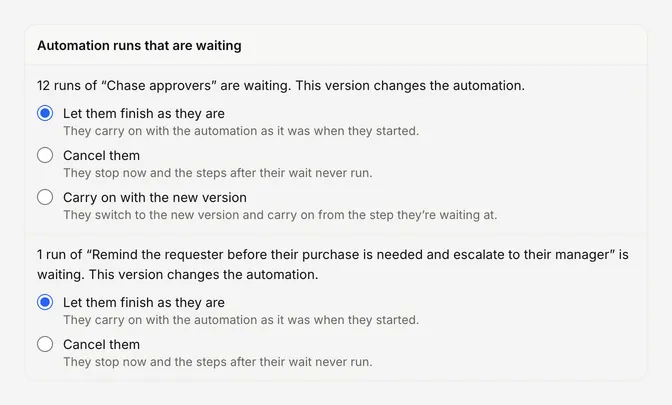
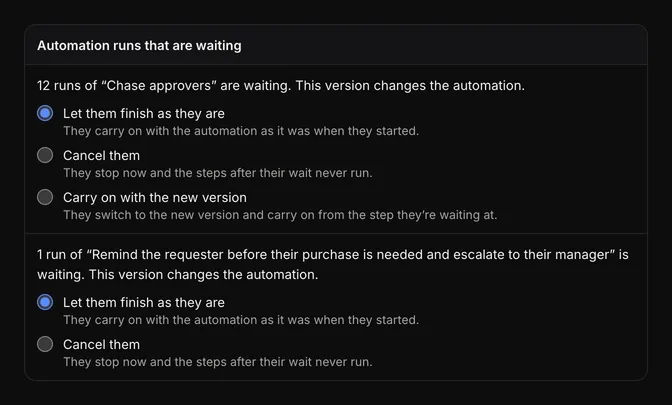
A waiting run carries on with the automation as it was when the run started. When you publish a change to an automation’s triggers, Only run if or steps, or remove it, and it has runs waiting, the publish review asks what to do with them under Automation runs that are waiting:
- Let them finish as they are (the default): they carry on with the automation as it was when they started.
- Cancel them: they stop now and the steps after their wait never run.
- Carry on with the new version: they switch to the new version and carry on from the step they’re waiting at. This is offered when that step is still a Wait in the new version. Steps you added before it don’t run for them.
Renaming an automation doesn’t ask.
Runs on an entry
Every entry has an Automation runs tab listing the runs for that entry: the automation, trigger, status, when it started, how long it took and how many steps ran. Select View to open a run, and Open automation in builder to go to the automation. The entry’s History also links to the runs it started. See The entry page.