
Logic and validation
Calculated values and defaults
Start a field with a value, copy another answer, look up a data table row or calculate a total, with values that keep updating as people answer.
A field can start with an answer already filled in, or keep a value worked out from other answers, such as a total. You set both with the field’s Default value.
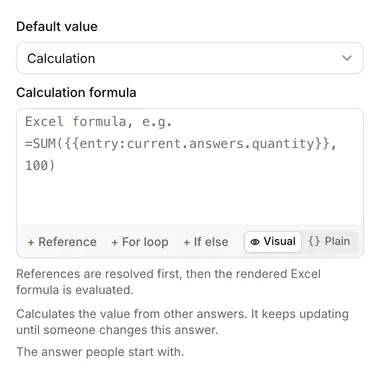
Set a default value
- In the builder, select the field and stay on the Field tab.
- Under Default value, choose where the value comes from.
- Fill in the setting that appears.
| Option | What it does |
|---|---|
| None | The field starts empty. |
| Fixed value | The answer people start with, such as a chosen option, a country or a team member. |
| Look up from a dropdown | Fills the field from a column of the data table row picked in another dropdown, such as the price of the chosen product. |
| Another answer | Copies another answer. |
| Template | Builds the value from text and other answers, such as a greeting with the respondent’s first name. See Template syntax. |
| Calculation | Calculates the value from other answers with a formula. |
| Items from a list | For repeating groups: builds the items from another list. |
Only the options that suit the field are listed. Fixed value and Calculation are for fields that hold one value; lists such as Multiple choice or a repeating field can use Another answer and Template. Password, Signature, content blocks, and groups that don’t repeat (including Name and Address) have no default value.
Fields that copy, look up or calculate their value are marked on the canvas, for example Calculated or Copied from Email.
Values that keep updating
A default that uses other answers keeps updating as those answers change, until someone changes this answer.
- If the respondent types over the value, it stops following the other answers.
- If they change it back to the worked-out value, it starts following them again.
- To stop people changing it at all, turn on Read only in the same tab. People see the answer but can’t change it.
A default that doesn’t use other answers, such as a fixed value or a value from a data table, is set once when the entry is started. In a repeating group, defaults are set for each new item.
Values are worked out on the server each time an answer is saved.
Calculate a value
- Under Default value, choose Calculation.
- In Calculation formula, write an Excel-style formula. Select + Reference to insert an answer.
- Optionally turn on Read only so people can’t change the result.
For example, a Total field that multiplies two answers and rounds to two decimal places. The editor shows inserted answers as labels; here the formula is written out as text:
=ROUND({{entry:current.answers.price}} * {{entry:current.answers.quantity}}, 2)Answers are put in first, then the formula is worked out. Common spreadsheet functions such as SUM, ROUND, IF, MIN and MAX work.
Write the formula on one line. A formula split over several lines gives #NAME?, and the field stays empty.
A Dropdown or Single choice answer is the chosen option’s value, so options with values such as 10 and 20 can be used as numbers:
={{entry:current.answers.size}} * 2A calculation stays empty until every answer it uses has a value. To treat an empty answer as zero, add a fallback to the reference, as in {{entry:current.answers.price|default:0}}. See Inserting values for the reference syntax and formatters.
A default can’t use its own field’s value, and defaults can’t depend on each other in a loop. The builder shows an error if they do.
Look up from a dropdown
Use this when a Dropdown or Single choice field gets its options from a data table and you want another field to show a column from the chosen row.
- Under Default value, choose Look up from a dropdown.
- Under Dropdown, pick the dropdown.
- Under Column, pick the column to copy.


The option only appears when the form has a dropdown with options from a data table. See Options from a data table.
Repeating groups
Inside a repeating group, a default can use answers from the same item: in the picker, choose Current instance and then the field. For example, each line of an order can calculate its own line total.
To add up a field across every item, such as an order total from each line total, insert the repeating group, then add Extract field with the field’s ID and Join with separator with a comma, and wrap it in SUM:
=SUM({{entry:current.answers.items|pluck:"line_total"|join:","}})Items without a value are left out of the sum.
For the repeating group itself, Items from a list creates one item for each entry in another list:
- Under Items source, pick the list to copy from.
- Select Add mapping for each field in the item.
- Under Target, pick the field to fill, then choose where its value comes from. Use
item.<field>references to read from each source item.
Starting values without a default
- A Slider starts at its minimum value.
- A Yes or no field shown as a Switch or Checkbox starts off. Shown as Yes and No buttons, it starts unanswered.
When a default isn’t enough
For logic a single formula can’t express, such as several steps with conditions, looking up a record or setting several answers at once, use an automation that runs while someone fills in the form. Start it with Answer changes, work the value out with a Calculate step and save it with Update entry or row. These automations run inside the respondent’s request, so they are limited to quick steps. See Triggers and Steps.