
Forms
Share and embed
Share a published form by link, embed it on your website or in a popup, download a QR code, and preview a draft with a preview link before publishing.
Once a form is published, you can send people a link, embed it on your website or open it in a popup. While you work on a draft, you can try it out with Preview or a draft preview link.
To get the links and code, open the form in the builder and select Share in the top bar. You can also select Share and embed from a form’s menu in the project’s form list.
Before you publish
A form has no public link until it has been published. If it has not been published yet, the page shows Not published yet and a Publish to get a link button. See Drafts and publishing.
Your live form
The Your live form card has three tabs. Everything on them always shows the latest published version, so you can keep editing and publishing without replacing links or code.
Link
Send the link by email or message, or add it to a button. Select Copy link to copy it or Open form to open it in a new tab.
https://app.useformwork.com/client/forms/FORM_IDUnder the link is a QR code for posters, flyers or a screen at an event. Select Download PNG to save it. Scanning it opens the live form.
For a published form, you can also copy the link from the project’s form list: open the form’s menu and select Copy form link.
Embed
Paste the code into your page where the form should appear. It works on any site or CMS that allows custom HTML, and it uses the form’s appearance settings. Select Copy code to copy it.
<formwork-form form-id="FORM_ID"></formwork-form>
<script src="https://app.useformwork.com/static/client.js" type="module"></script>
You can place more than one form on the same page. Add a <formwork-form> element for each one; the script only needs to be included once.
Popup
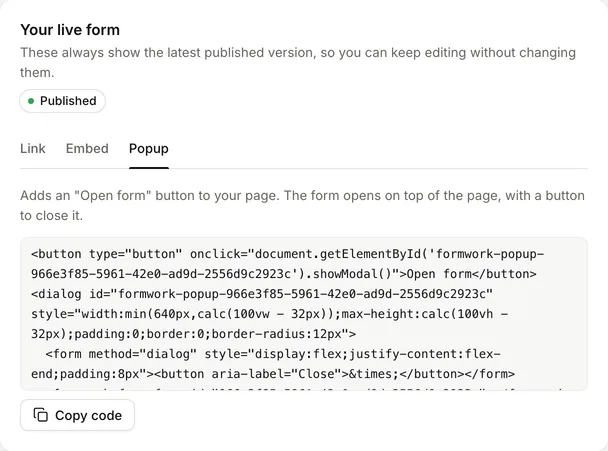
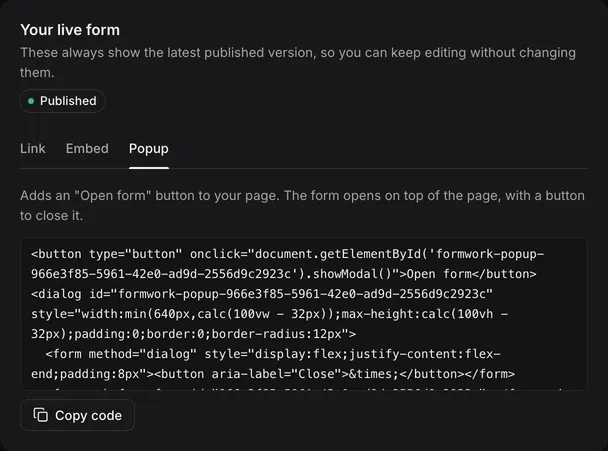
The popup code adds an Open form button to your page. Selecting it opens the form in a dialog on top of the page, with a close button in the corner. You can change the button’s text and style in the code.
Preview a draft
Use Preview in the builder’s top bar to try the draft as a respondent without leaving the builder. It opens the draft in a dialog; close it to return to where you were. Preview is not available for archived versions.
To test a draft somewhere else, such as on a phone or a staging website, use the preview card on the Share and embed page. It is called Preview this draft before the first publish and Preview your draft changes after it.
- Open preview opens the draft on its own page. Copy link copies a link that includes
preview_version_id. - Test embed code gives embed code that includes
preview-version-id.
Both are locked to that draft. They are for testing only:
- Entries made in a preview are real. They appear in your entries and send any notifications you have set up.
- Do not send preview links to respondents or use test embed code on a live website. Replace it with the live embed code after you publish.
When you view an archived version, the page explains that links and embed code always use the published version, never an archived one.
After publishing
You do not need to copy a new link or new embed code after you publish. Both always load the latest published version. Anyone who has already started filling in the form carries on with the version they started.
For developers
The embed is a web component. Its attributes can hide the title or submit button and force light or dark mode, and its JavaScript API lets your page set answers and listen for events. See Embedding and the JavaScript API and Theming with CSS.