
Process and stages
Owners and due dates
Decide who owns entries in each stage and when they are due, change who owns an entry, and spot overdue entries across FormWork.
Each open or waiting stage can give its entries an owner and a due time when they arrive. Owners see their entries in My work, and overdue entries stand out across FormWork. Closed stages have neither.
Choose who owns entries in a stage
On the Process page, set Owner on the stage card.
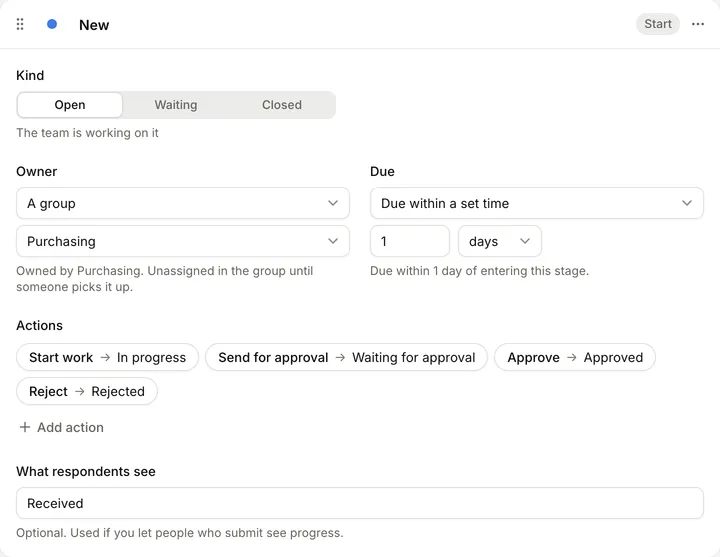
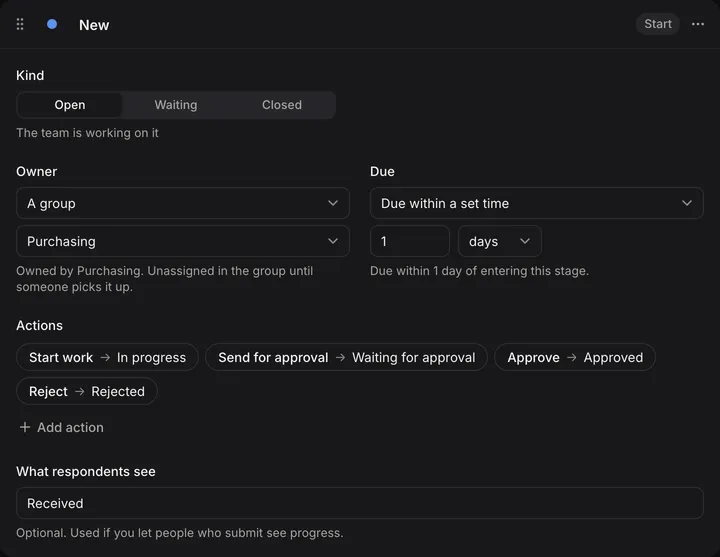
| Owner | Who owns entries that enter the stage |
|---|---|
| Nobody | No one. |
| A person | The person you choose. |
| A group | The group, unassigned within it until someone in the group takes the entry. |
| The person in a team member field | The person in a Team member team field on the entry. If the field is empty, or that person has left the account, nobody owns it. |
| Keep the current owner | Whoever owned the entry in the stage before. |
The owner is set each time an entry enters the stage. Changing a stage’s owner later doesn’t change entries already in it unless you choose Apply to entries already in this stage when you publish. See Publish process changes.
To share new entries out between a group’s members in turn, use the Assign step in an automation. See Steps.
Groups
Groups are teams of people in your account, such as Purchasing or Finance. They can own stages and approve entries.
Account admins create and change groups in Account settings > Team; see Groups. Everyone can see the account’s groups.
Change who owns an entry
On the entry page, select the owner in the process bar.


| Option | Who sees it | What it does |
|---|---|---|
| Assign to me | Anyone, when nobody owns the entry or it is unassigned in one of their groups. Account admins always. | Makes you the owner. If the entry belonged to a group, it stays in that group too. |
| Assign to… | The owner and account admins | Gives the entry to a person or a group. People marked as away are shown with their return date. |
| Unassign | The owner and account admins | Leaves the entry with no owner. |
Changing the owner doesn’t move the entry, and it shows in the entry’s history.
Set a due time
On the Process page, set Due on the stage card to Due within a set time and choose a number of hours, days or weeks. No due time means entries in the stage are never overdue.
| Unit | Up to | How it’s counted |
|---|---|---|
| hours | 8,760 | Exactly that many hours after the entry enters the stage |
| days | 365 | The same time of day, that many days later, in your account’s timezone |
| weeks | 52 | As days, seven per week |
The due time is worked out when the entry enters the stage, and moving to another stage replaces it. Changing a stage’s due time later doesn’t change entries already in it unless you choose Apply to entries already in this stage when you publish.
Your account’s timezone is set in Account settings > General > Timezone.
Overdue entries
An entry is overdue once its due time has passed and it is still in the stage. Overdue entries show:
- on the entry page, for example “Overdue by 2 days”, in red
- in red in the entries table’s Due column, and under the Overdue quick filter
- in the Overdue group in My work, which turns the My work badge red
FormWork doesn’t email owners when an entry is assigned to them or becomes overdue. To do that, use an automation with the In a stage too long trigger or the Stage changes trigger. See Triggers.
Mark yourself as away
When you’re away, mark yourself as away so new work isn’t shared out to you.
- Open Your profile.
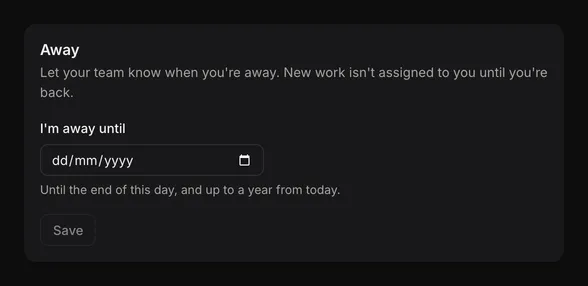
- Under Away, choose the date in I’m away until. You’re away until the end of that day, up to a year ahead.
- Select Save.
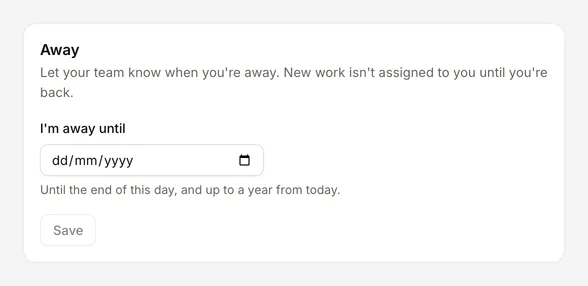
Select I’m back to clear it early.
Account admins can do this for anyone; see Mark someone as away.
While you’re away:
- the Assign step skips you when it shares entries out between a group, if its Skip people marked away setting is on (it is by default)
- Assign to… shows you as away
- My work shows a banner with I’m back
Being away doesn’t change entries you already own, and owner rules that name you still assign entries to you.