
Automations
Triggers
Choose what starts an automation: someone filling in the form, something happening to an entry, a schedule or a date, or another system calling FormWork.
A trigger is what starts an automation. The When card at the top of the editor lists an automation’s triggers as sentences, such as “The form is submitted”.
To add one, select the When card, or Add trigger on it for a second trigger. The picker groups triggers by when they happen. The group also decides how the automation runs; see Run modes.
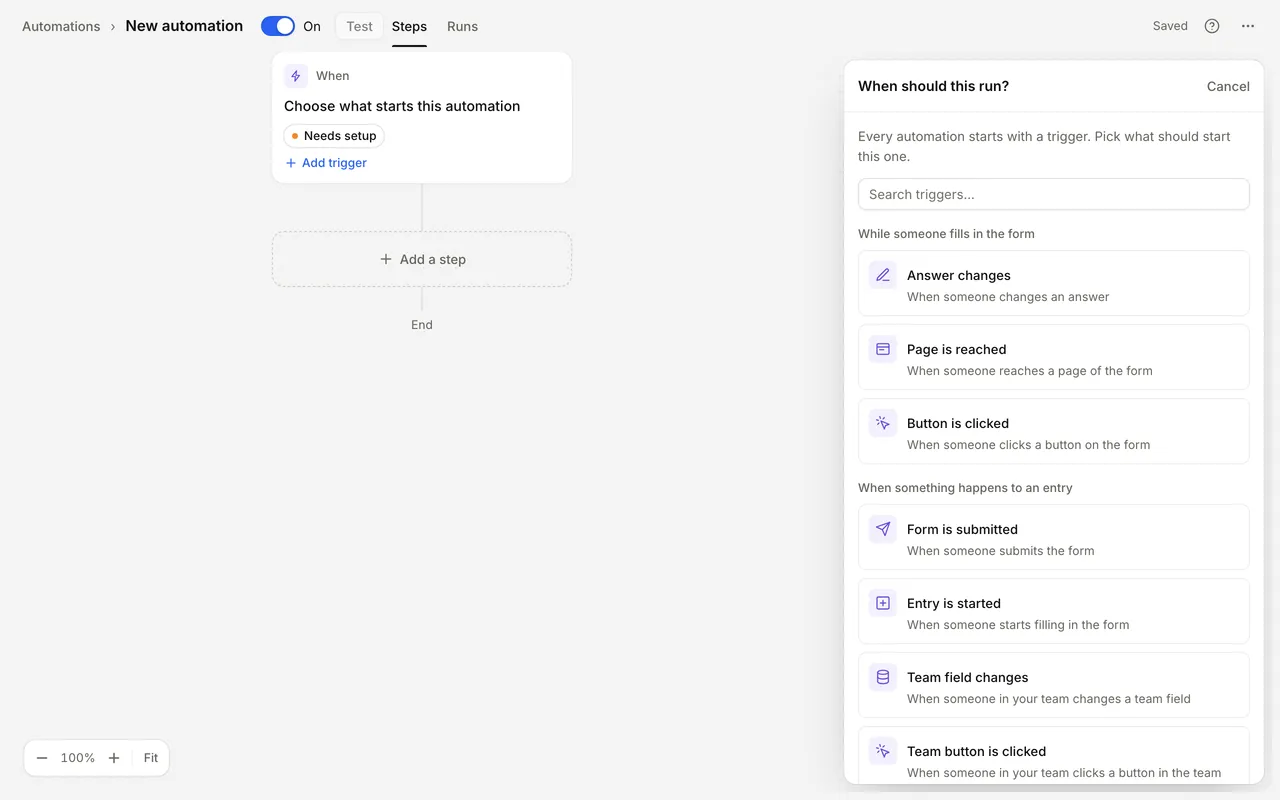
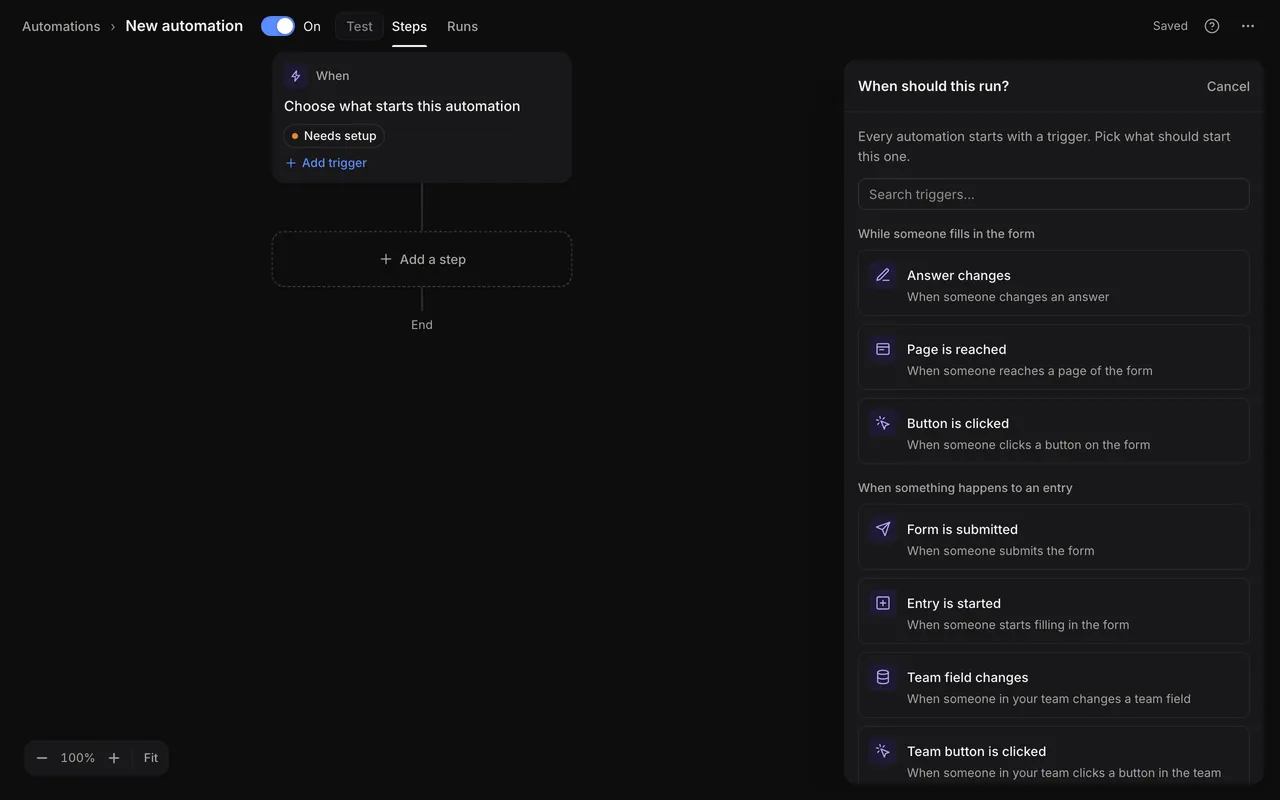
| Group | Triggers |
|---|---|
| While someone fills in the form | Answer changes, Page is reached, Button is clicked |
| When something happens to an entry | Form is submitted, Entry is started, Team field changes, Team button is clicked, Stage changes, Approval is decided |
| On a schedule | Every day / week, Before or after a date answer, No change for a while, In a stage too long |
| From another system | API request |
While someone fills in the form
These run instantly while the person waits, so they suit calculated values, lookups and changes to the entry the person can see. Only quick steps are available. See Instant automations.
Answer changes
Runs when someone changes an answer in the form.
You don’t pick the fields. FormWork watches the answers your steps use and lists them under Watched fields, updating the list as you change the steps. When the steps use no answers, or use a reusable template, the automation runs when any field changes.
Page is reached
Runs when someone moves to a page of the form. Under Trigger on pages, tick the pages that should start it. With none ticked, any page starts it.
The first page counts only when someone comes back to an entry they have already started, because until then there is no entry to run for.
Button is clicked
Runs when someone selects a button field on the form. Under Trigger on buttons, tick the buttons that should start it. With none ticked, any button starts it. The form needs at least one button field.
When something happens to an entry
Form is submitted
Runs when someone submits the form. Use it for confirmation emails, documents, records in other systems and anything that needs the complete answers.
Entry is started
Runs when someone starts filling in the form: FormWork creates the entry when they first answer a question or move to another page. Every step runs while they wait, so keep it short: setting starting values or a reference number, for example. Entries created by automations don’t start it.
Team field changes
Runs when someone in your team changes a team field on an entry. It runs for any team field; add Only run if or an If step when only some changes matter.
Team button is clicked
Runs when someone in your team selects a button in the team fields. Under Trigger on buttons, tick the buttons that should start it. With none ticked, any team field button starts it.
Stage changes
Runs when an entry moves to another stage of the process. The form needs a process first.
- From: Any stage, or These stages. Any stage includes entries entering their first stage.
- To: Any stage, or These stages.
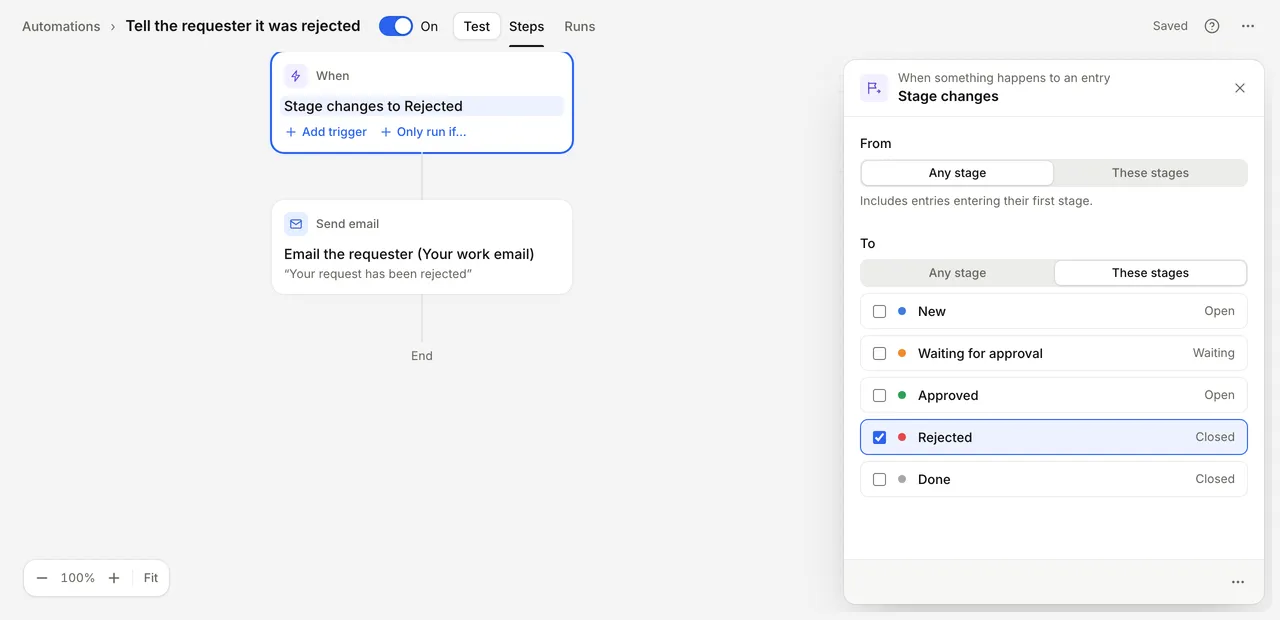
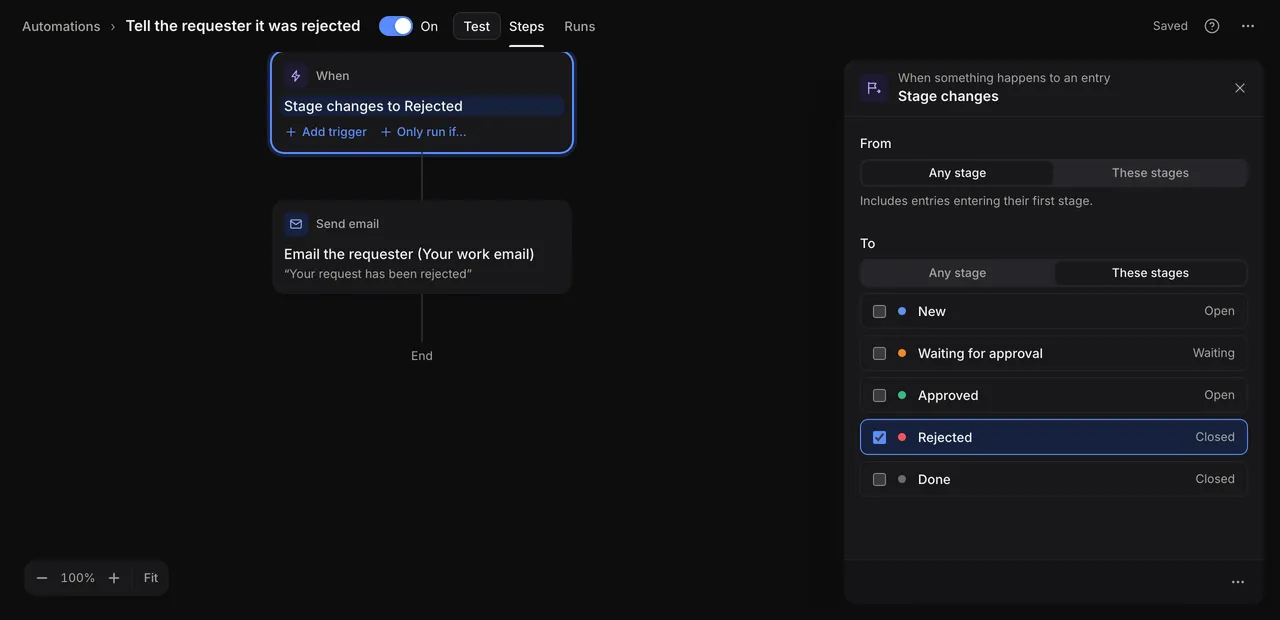
Changing an entry’s owner, undoing a move, and the moves FormWork makes when you publish a process don’t start it. When an automation moves an entry, the automations this starts run after the moving run finishes or starts waiting.
Approval is decided
Runs when an approval is decided. Under Run when the request is, choose Approved, Rejected or Either.
Both stage triggers give later steps details of what happened, offered in the value picker: Previous stage, New stage, Who moved it or Who decided, Comment and, for approvals, Decision. See Inserting values.
On a schedule
FormWork’s scheduler starts these, checking every minute. Times are in your account’s timezone, which an account admin can change in Account settings. Each trigger’s settings end with a sentence saying when it runs, such as “Every Monday at 08:00 (Europe/London)”.
Apart from Every day / week, these triggers only look at submitted entries. Entries that have been deleted, and preview entries on a draft, are left out.
Every day / week
Runs at a time on the days you choose.
- On these days: tick the days. Leave them all unticked to run every day.
- At: the time of day.
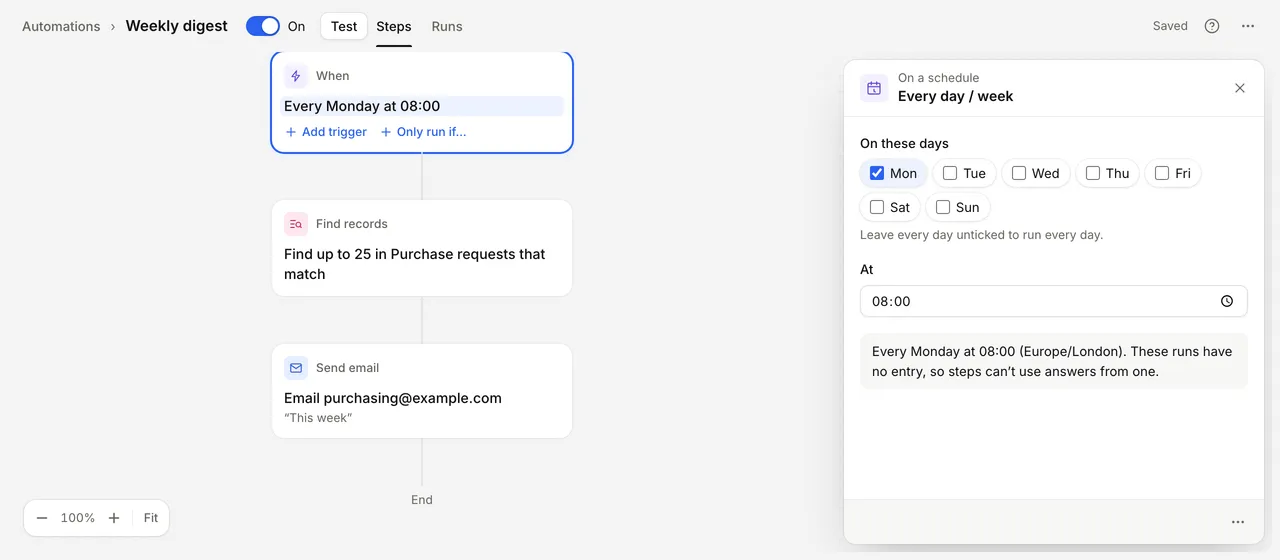
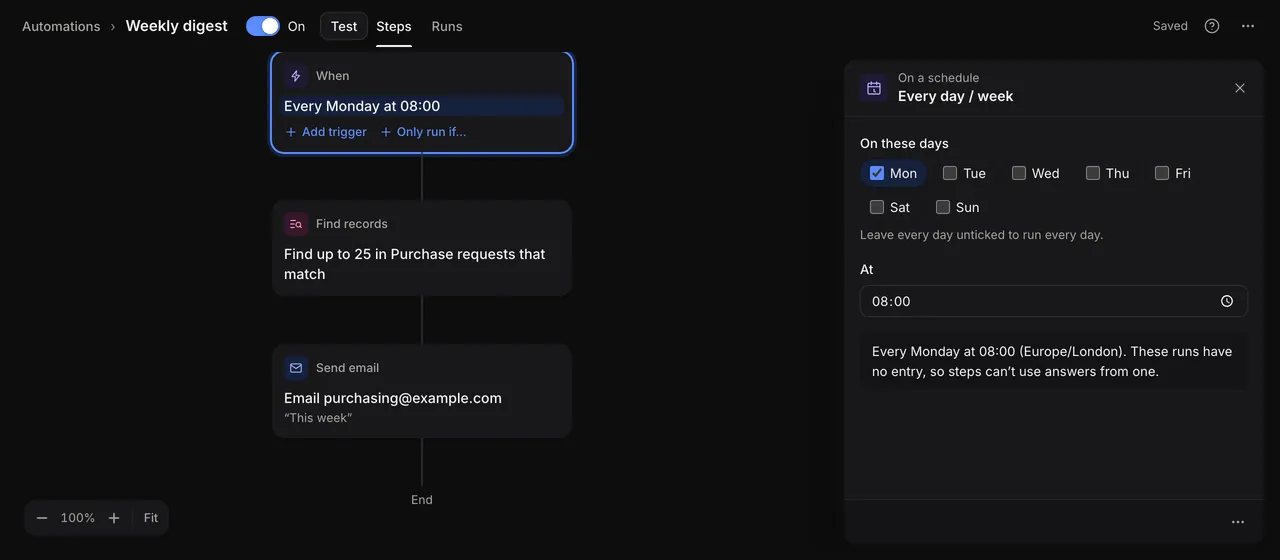
These runs have no entry. Steps that work on this entry, such as Move to stage, Generate PDF or Update entry or row on this entry, aren’t available, and steps can’t use answers from one. Use Find records to work with a list of entries. An Every day / week automation can’t have other triggers.
Before or after a date answer
Runs a set time before or after a date someone gave, such as an event date.
- Date answer: a date or date and time question on the form. Team field dates are listed too, marked “(team field)”.
- Amount, Unit and Before or after: for example 1 day before. Units are days or hours.
- At: the time of day. A date without a time counts from the start of that day.
It runs once for each entry and date. If someone changes the date, it runs again for the new one. An entry submitted after its reminder time has already passed doesn’t get one.
No change for a while
Runs when nobody has changed an entry for the time you set.
- Nothing changed for: hours or days.
- Only in these stages: shown when the form has a process. Leave them all unticked to count entries in any stage.
Only changes people make count. Updates made by automations don’t start the time again. A new change by a person lets it run again later.
In a stage too long
Runs when an entry stays in a stage for longer than you choose. The form needs a process.
- In these stages: at least one. Closed stages aren’t offered.
- For longer than: hours or days.
It runs once each time an entry enters one of these stages and is still there after the time you set. Days keep the time of day when the clocks change. To remind people about due times, set the time to match the stage’s due time.
From another system
API request
Lets another system start the automation for an entry through the FormWork API, with an API key:
POST /v1/workflows/{workflow_id}/runs?form_version_id={form_version_id}The request body gives the entry as entry_id. Every step runs while the request waits, and the response returns the run. The automation must have an API request trigger and be on. See the REST API.
Several triggers
An automation can have up to 20 triggers. Whichever one fires, the run starts at the first step. To do something different for each trigger, start with a Switch on the trigger.
Some combinations can’t be published:
- Triggers from While someone fills in the form can’t be mixed with triggers from other groups.
- Every day / week can’t be combined with any other trigger.
To remove a trigger, open it and choose Remove trigger from the menu at the bottom of its settings.
Avoid repeated runs
Changes that automations make to answers, team fields and records don’t start Answer changes or Team field changes, and neither do imports. So an automation that updates the entry it runs for won’t start itself again.
When something still runs more often than you expect:
- Add Only run if, or an If at the top, to check the entry’s state first.
- Use a team field as a marker, such as “Invoice sent”, and check it before acting.
- Look at the entry’s Automation runs tab to see which trigger started each run. See Runs and testing.