
Automations
Automations
Send emails, update records, move entries between stages and call other systems when something happens to a form or entry.
An automation does work for you when something happens: a form is submitted, an answer changes, an entry moves to another stage, a date comes round. Each automation starts with one or more triggers and runs its steps from top to bottom.
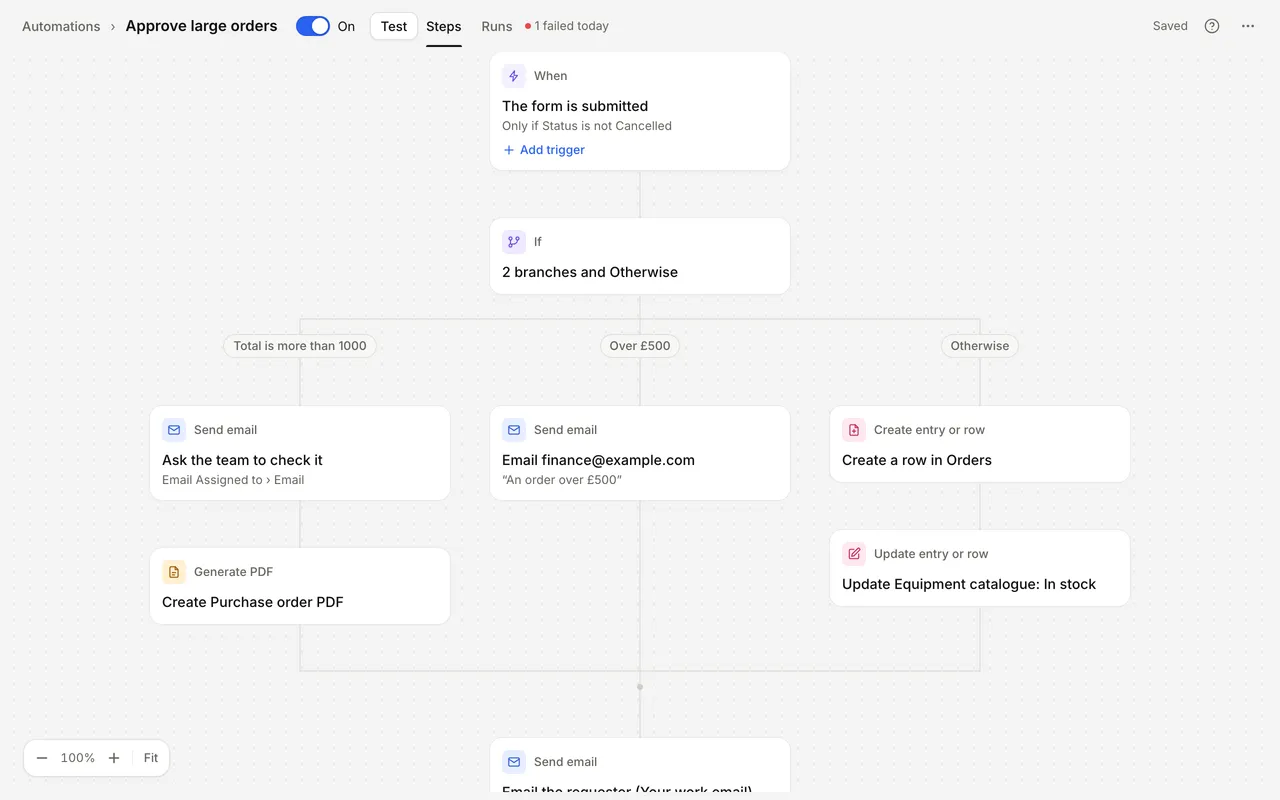
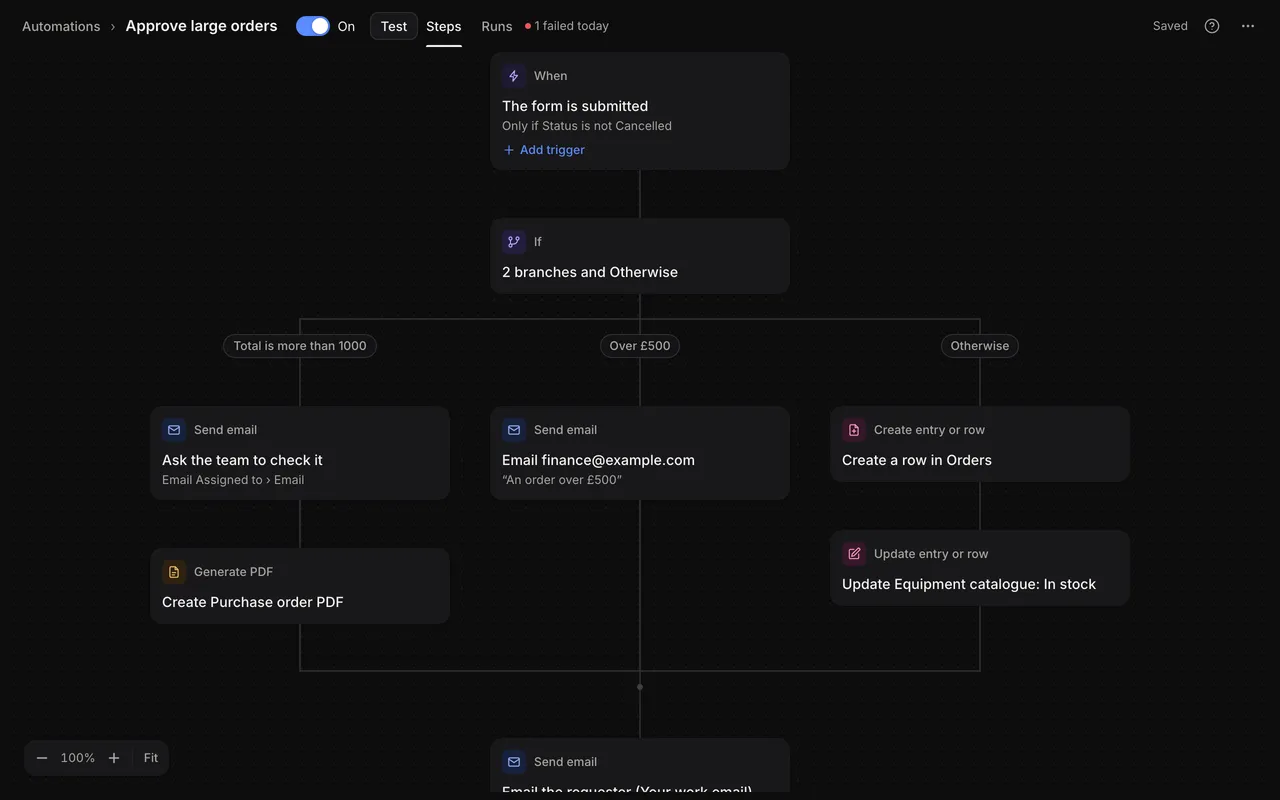
Automations belong to a form or data table and are built in the builder’s Automations tab.
How an automation is built
An automation reads as a list:
- When: the triggers that start it, such as Form is submitted or Stage changes.
- Only run if: an optional condition, checked once when a trigger starts a run. When it isn’t met, the automation doesn’t run.
- Steps: what it does, in order. See Steps.
Steps can branch with If and Switch, repeat with For each and pause with Wait. Only one branch of an If or Switch runs, then the run carries on with the step after the block. Stop ends the run early, as completed or as failed, and Skip to next item goes on with the next item of a For each. Steps that call another system can have steps that run if they fail; see When a step fails.
Settings that need a value from the entry, such as an email address or an amount, use the value picker. See Inserting values.
Create an automation
- Open the form in the builder and select Automations.
- Select New automation. When the form has no automations yet, the page shows templates instead: pick one, or select Start from scratch.
- Under Start from, choose Blank automation or a template, and give it an Automation name.
- Select Create automation.
- Choose what starts it under When should this run?
- Add steps with the + buttons between steps, and fill in each step’s settings.
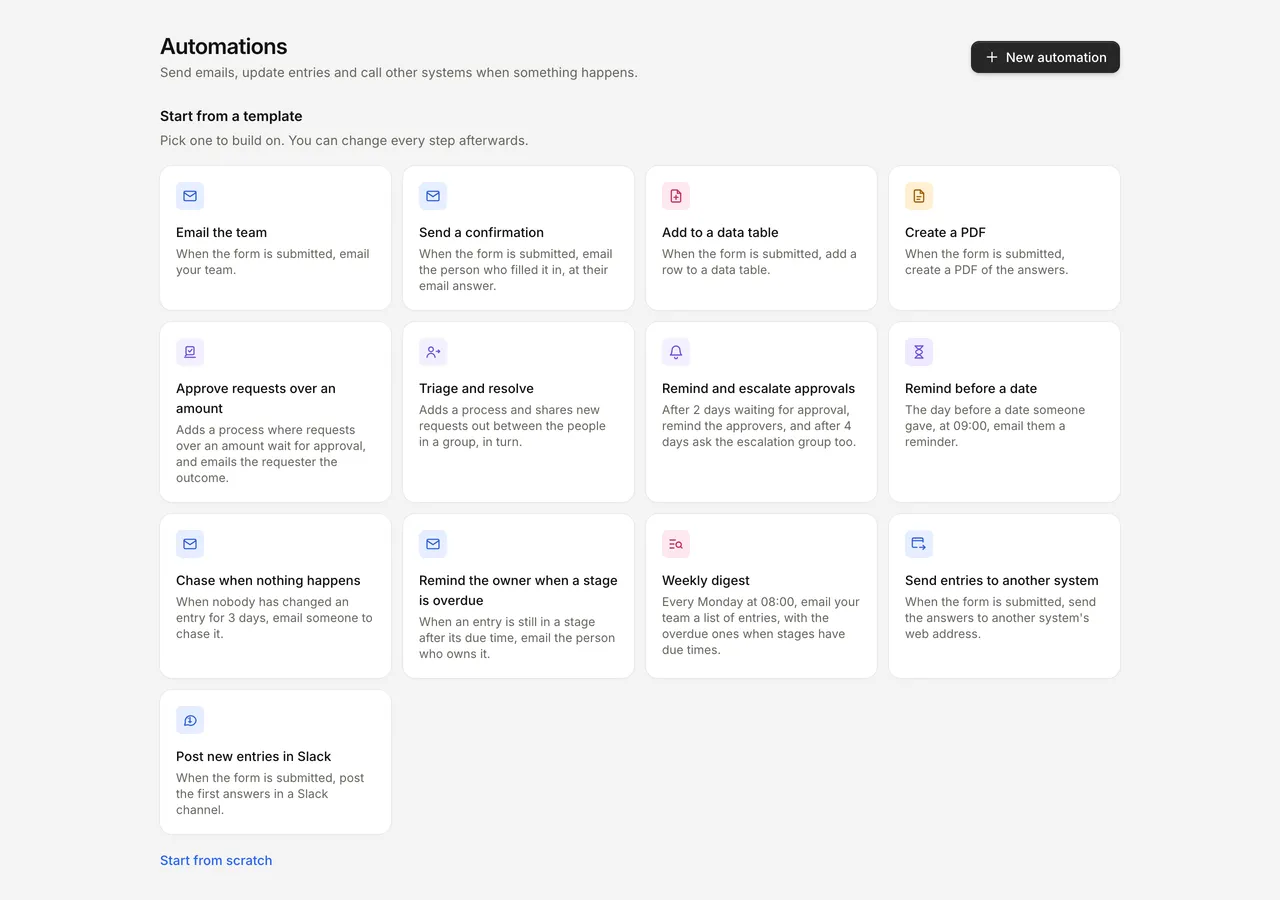
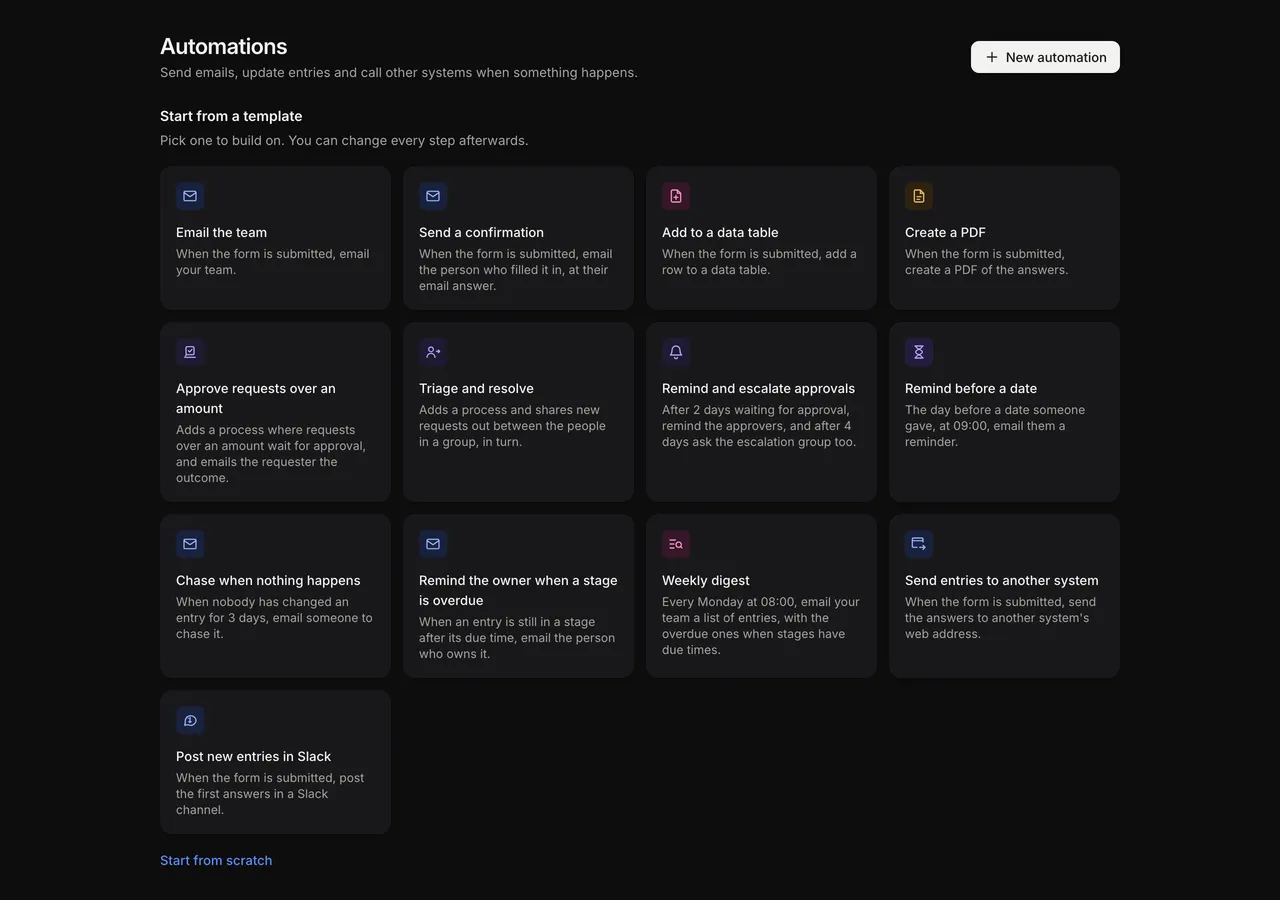
Templates set up the trigger and steps for you, and some also add a process. A template that can’t be used yet says why, for example “Add a number question for the amount first”.
| Template | What it sets up |
|---|---|
| Email the team | When the form is submitted, email your team. |
| Send a confirmation | When the form is submitted, email the person who filled it in, at their email answer. |
| Add to a data table | When the form is submitted, add a row to a data table. |
| Create a PDF | When the form is submitted, create a PDF of the answers. |
| Approve requests over an amount | Adds a process where requests over an amount wait for approval, and emails the requester the outcome. |
| Triage and resolve | Adds a process and shares new requests out between the people in a group, in turn. |
| Remind and escalate approvals | After 2 days waiting for approval, remind the approvers, and after 4 days ask an escalation group too. |
| Remind before a date | The day before a date someone gave, at 09:00, email them a reminder. |
| Chase when nothing happens | When nobody has changed an entry for 3 days, email someone to chase it. |
| Remind the owner when a stage is overdue | When an entry is still in a stage after its due time, email the person who owns it. |
| Weekly digest | Every Monday at 08:00, email your team a list of entries, with the overdue ones when stages have due times. |
| Send entries to another system | When the form is submitted, send the answers to another system’s web address. |
| Post new entries in Slack | When the form is submitted, post the first answers in a Slack channel. |
After creating from a template, the editor opens on the first step that still needs a setting, such as who to email.
Work in the editor
The editor shows the automation as a flow: the When card at the top, then each step, with branches side by side below an If or Switch.
- Select a card to open its settings on the right. Settings save as you type.
- Select + on a line, or Add a step in an empty branch, to add a step there.
- Drag a step by its top row to move it, or use Move up, Move down and Move to… in its ⋯ menu. FormWork won’t let you move a step above a step whose result it uses.
- Select the name in the header to rename the automation. Each step can have its own name too, shown on its card.
- Pan by dragging empty space, and zoom with the controls in the corner (Fit and 100%).
- Select ? to see the keyboard shortcuts. You can move between steps with the arrow keys, add a step with / or A, and undo and redo deletes, moves and duplicates.
Steps that are missing a setting show Needs setup. The header counts them (“2 steps need setup”); select the count to jump to each one. An automation with missing settings can’t be published.
Run modes
Where a trigger sits decides how its automation runs. You don’t choose this separately.
| Trigger group | Badge in the list | How it runs |
|---|---|---|
| While someone fills in the form | While filling in | Instantly, while the person filling in the form waits, so calculated values and lookups show straight away. Only quick steps are available. |
| When something happens to an entry | After submission | Quick steps run straight away. From the first step that contacts another system (Send to webhook, Send Slack message, Generate PDF or an app action), the rest of the run carries on in the background, so nobody waits for it. |
| On a schedule | On a schedule | In the background. FormWork checks schedules every minute. |
| From another system | From another system | While the API request waits. The response includes the run. |
Two triggers in the entry group run differently:
- Entry is started runs every step while the person filling in the form waits.
- Stage changes and Approval is decided start in the background straight after the move or decision is saved.
A Wait step pauses any run except an instant one. The run is saved and carries on when the wait ends, even days later. See Runs and testing.
Instant automations
Automations that run while someone fills in the form are limited so the form stays fast:
- The step picker only offers quick steps: Calculate, If, Switch, For each, Stop, Skip to next item, Find a row or entry, Find records, Update entry or row (this entry only) and Send to webhook (GET only).
- All the instant runs that one change starts must finish within 2 seconds together. If they don’t, the run in progress fails and later ones are skipped. The person’s answer is still saved.
- Requests aren’t retried.
- An automation can’t mix these triggers with triggers from another group. Split it into two automations.
Turn an automation on or off
Use the switch on the automation’s row in the list, or next to its name in the editor. The change takes effect straight away, without publishing.
When you turn off an automation that has runs waiting, FormWork asks what to do with them:
- Keep it on
- Turn off: no new runs start, and waiting runs carry on when their wait ends.
- Turn off and cancel them: no new runs start, and the waiting runs are cancelled.
An automation that is off can’t be started through the API either.
Drafts and publishing
Automations are part of the form version. You change them on the draft, and the changes go live when you publish the form. Until the form has been published, its automations don’t run for real entries. See Drafts and publishing.
When you publish a change to an automation that has runs waiting, the publish review asks what to do with them. See Waiting runs when you publish.
The on and off switch is not part of the version: it applies to the automation on every version of the form.
The automations list
Each row shows the automation’s name, a sentence describing what it does, its trigger group, Off when it is off, and how many settings need attention. On the right are the last run, today’s runs and how many runs are waiting.
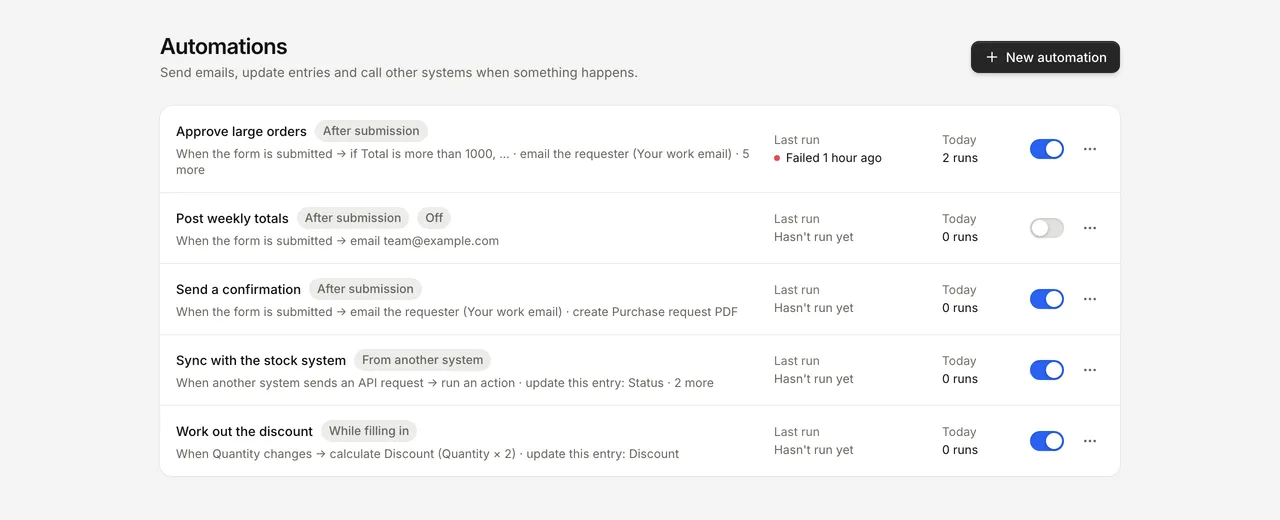
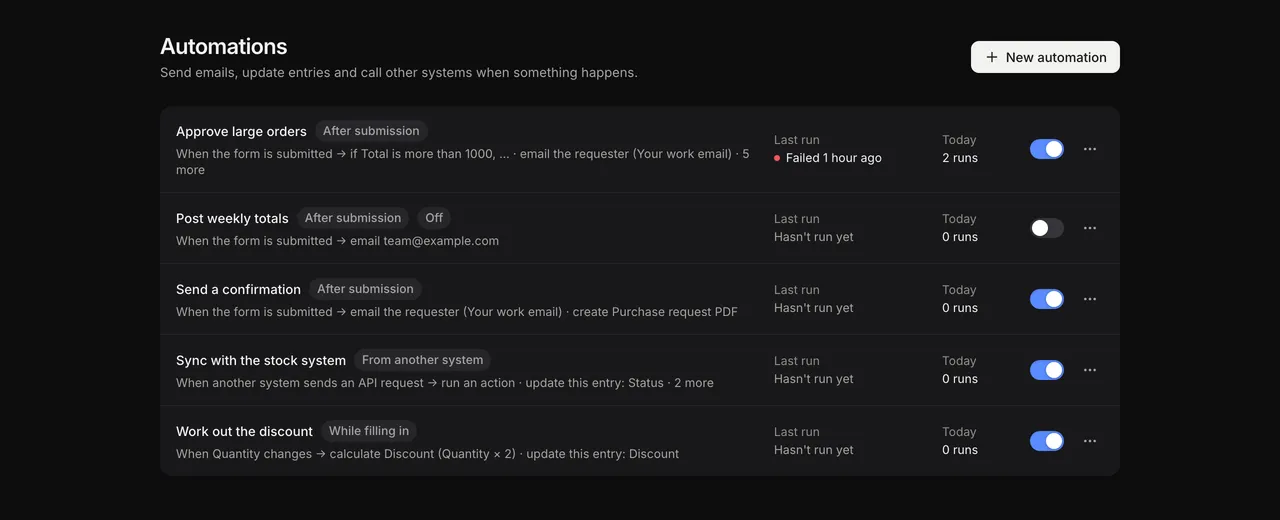
The row’s ⋯ menu has Open, Duplicate, Copy ID and Delete:
- Duplicate makes a copy that is off until you turn it on.
- Delete removes the automation from the draft. Once you publish, it won’t start for new events. Runs that have already started finish as they are, and past runs stay on their entries.
With more than 8 automations, the list adds a filter box and sorting by name, last run or newest.
Limits
| Limit | Value |
|---|---|
| Triggers per automation | 20 |
| Steps per automation | 200 |
| Blocks inside blocks (If, Switch, For each) | 6 levels |
| Branches per If | 10, plus Otherwise |
| Cases per Switch | 25, plus Otherwise |
| Longest wait | 365 days |
| Records from Find records | 100 |
Automations that move entries between stages can start other automations. To stop loops, FormWork stops runs when automations have moved the same entry more than 5 times in a row, or when the entry has moved more than 20 times in a minute.