
Entries
The entry page
Read an entry's answers, move it through its stages, correct answers, update team fields and see everything that happened to it.
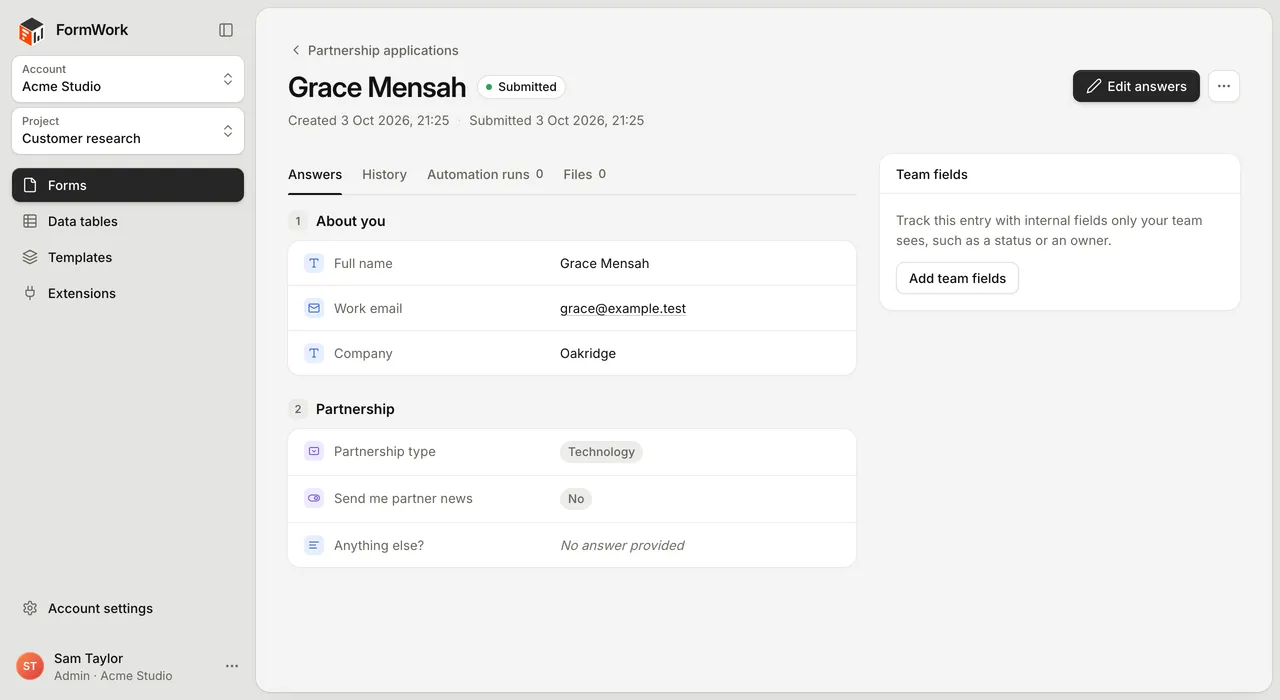
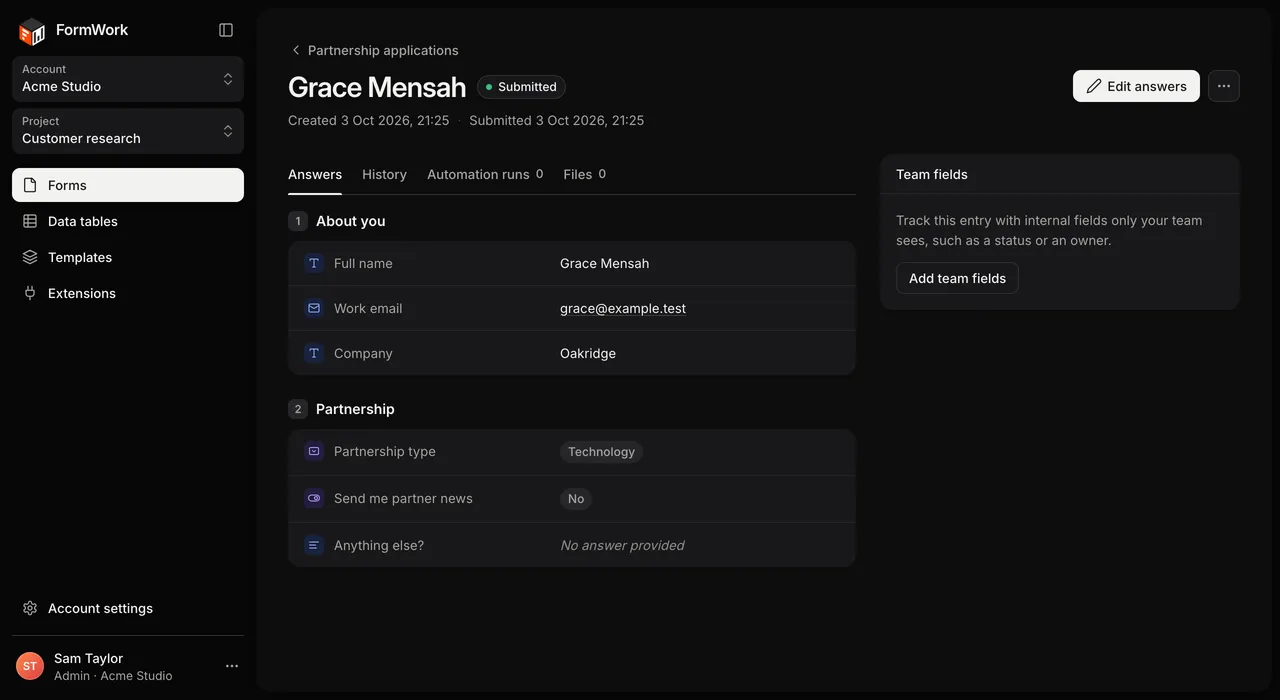
The entry page shows one entry: its answers, where it is in the process, its team fields and its history. Open it by selecting an entry in the entries table or in My work.
The header
The title is the entry’s first answer to a single text or email question. If there is none, it reads “Entry from” and the date it was started. Under the title are the date the entry was created and the date it was submitted, or “Not submitted yet”.
The header has:
- Previous entry and Next entry, when you opened the entry from the entries table. They follow the same view, filters and order.
- Edit answers, once the entry is submitted. See Correct answers.
- A menu with Copy link, Copy entry ID and Delete entry. When the form has a process, the menu also has Copy status link and Turn off status link. See Respondent status.
The back link returns to the form’s entries, in the view you came from, or to My work.
Stage, owner and due time
If the form has a process, a bar under the title shows the entry’s stage, its owner and when it is due. Without a process, the header shows the entry’s status (In progress or Submitted) instead.


From the bar you can:
- Use one of the stage’s actions, such as Start work or Mark as done. Up to three show as buttons; the rest are in the ⋯ menu (More actions). When none show as buttons, they are under Move to…. Actions you can’t use are listed with the reason, such as “Only the owner can use this”.
- Change the owner with Assign to me, Assign to… or Unassign, when you are allowed to.
- Move the entry to any stage with Move to any stage…, if you are an account admin. You must say why.
An entry that has not joined the process yet shows “This entry joins the process when it is submitted.”
See Stages and Owners and due dates.
Approval
When the entry is in a stage that needs approval, an Approval panel lists who was asked, what each person decided and how many approvals are still needed. If your approval is needed, add a comment and select Approve or Reject. A comment is always needed to reject.
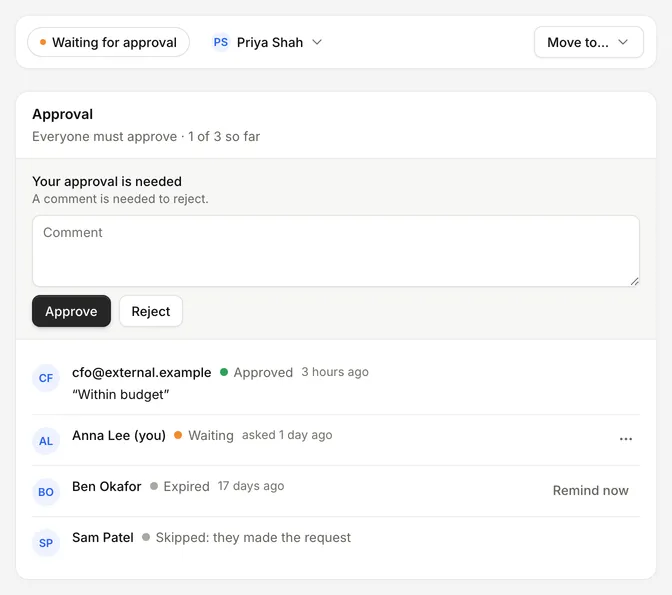
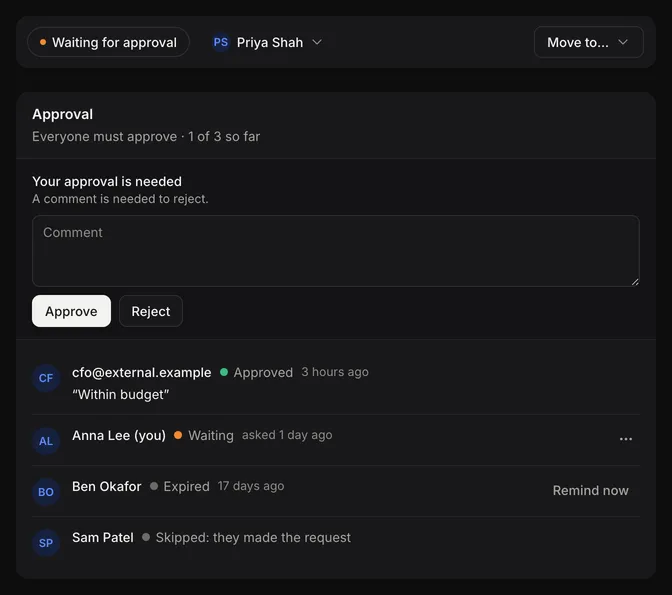
Select Remind now next to someone who has not answered yet. Account admins can also withdraw someone’s request with Withdraw request in the menu beside them. See Approvals.
Tabs
| Tab | What it shows |
|---|---|
| Answers | Every answer, page by page, laid out as in the form version the entry was saved with. Fields that were hidden by logic are left out, and validation problems are shown beside the field. |
| History | Everything that happened to the entry, newest first. See Revisions and history. |
| Automation runs | Each automation that ran for the entry, with its trigger, status, start time, duration and number of steps. Select a run to see each step. See Runs and testing. |
| Files | Files uploaded to the entry and files automations generated for it. See Files and uploads. |
Team fields
The side panel holds the entry’s team fields: internal fields your team fills in, such as a reference number or notes. Changes save automatically. The panel’s History tab lists every change to them.
If the form has no team fields yet, the panel offers Add team fields. See Team fields.
Correct answers
You can change the answers of a submitted entry, for example to fix a typo or update an address.
- Select Edit answers. The form opens in a dialog.
- Change the answers you need. Moving between pages does not save anything, and you don’t need to visit every page.
- Optionally fill in Reason for the change (optional), for example “corrected the delivery address”.
- Select Save changes.
The entry stays submitted, and its history records each changed answer with your name and reason. Cancel, or closing the dialog, throws your changes away.
While you are editing, teammates who open the entry see that someone is editing its answers. If you leave without saving, the entry tells you your changes are not saved and offers Continue editing or Discard changes.
Entries that are still in progress can’t be edited from the entry page.
Delete an entry
Select Delete entry in the header menu and confirm. The entry, its files and its team fields are deleted. See Delete entries.