
Entries
Files and uploads
Where uploaded and generated files are kept, how to download them, who can open them and what happens when entries are deleted.
Files in FormWork belong to an entry or a form. People upload files through a File upload question, automations generate PDFs, and imports and exports create CSV files. None of them have permanent public links.
Where files appear
| Place | What it holds |
|---|---|
| The entry’s Answers tab | The files given in answer to each File upload question |
| The entry’s Files tab | Every file uploaded to the entry and every file generated for it |
| The form’s Files tab | Exports, imports and import error reports. See Import and export. |
File upload questions
A File upload question lets people attach documents or photos. In its settings you choose:
- Maximum file size, per file, up to 100 MB. The default is 10 MB.
- Allowed file types, as extensions such as
.pdfor types such asimage/*. Leave it empty to accept any type. - Allow multiple files, with Min files and Max files, up to 20.
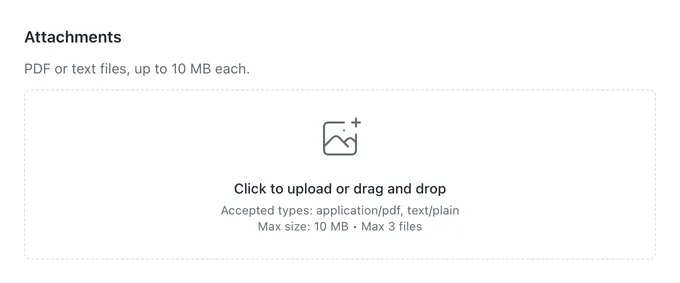
Files that are too large or of the wrong type are refused as they are uploaded, with a message naming the file and the limit. See Field settings.
Tell people what you need in the question’s description, for example “A PDF of your latest payslip”.
Entry files
Open an entry and select Files. The table shows each file’s name and type, its source, status, when it was created and its size.
| Source | Meaning |
|---|---|
| Uploaded | Attached by the respondent, or by your team when editing answers |
| Generated | Created by an automation, such as a Generate PDF step |
Select Download to open a file. Only files whose upload finished (status Completed) can be downloaded. A file that is still uploading or that failed can’t be used.
Generated files
The Generate PDF automation step saves the PDF on the entry. Its Generated file access setting decides who can open it:
| Setting | Who can open the file |
|---|---|
| Admin only | Your team, from the entry |
| Admin and entry key | Your team, and anyone holding the entry’s key, such as the respondent’s browser |
See Steps.
Downloading and sharing
When you select Download, FormWork checks you can open the file and gives your browser a short-lived link. Don’t copy that link into other systems; it stops working.
File links in an exported CSV are different: they point to FormWork and open the file for anyone signed in to your FormWork account, so they keep working in a spreadsheet. Someone who can’t open the file sees “File not found”.
Deleting
Deleting an entry deletes its uploaded and generated files, including files in its team fields. Deleting a form deletes its entries and their files. Deleted files no longer count towards your storage. The app has no way to restore deleted files, so download anything you need first.
Storage
Files count towards your plan’s file storage. See Plans and billing.