
Automations
Steps
What each automation step does and the settings it needs, from sending an email to waiting, branching and moving entries between stages.
Steps are the work an automation does, in order from the top. This page lists every step by the group it appears under in the step picker, with the settings each one needs.
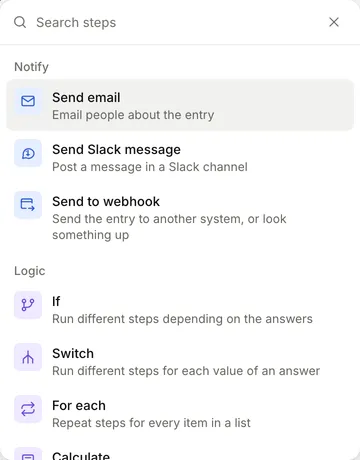
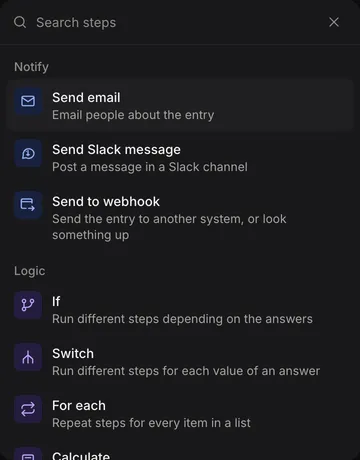
Add, change and remove steps
- Select + on the line where the step should go, or Add a step in an empty branch.
- Search or browse the picker and choose a step. It is added at that point and its settings open.
- Fill in the settings. They save as you type. Settings that pick an answer or an earlier result use the value picker; see Inserting values.
Each step’s settings show its name at the top, which you can change. The name shows on the step’s card. Duplicate sits at the bottom of the settings, and the menu beside it has Copy step ID and Delete.
Deleting an If or Switch asks whether to delete the steps inside it too, or to keep the Otherwise steps. Deleting a step that later steps use warns you first. After a delete, Undo in the message brings the step back.
A step that is missing a setting shows Needs setup and stops the form being published. Hover over the label, or open the step, to see what it needs.
The picker only offers steps that can run with the automation’s triggers:
- Automations that run while someone fills in the form only get quick steps. The table at the end of this page lists them.
- Every day / week automations have no entry, so steps that work on this entry are hidden. Use Find records to work with entries.
- Stages steps appear once the form has a process. Until then the group says “Set up a process to move entries between stages”.
- Skip to next item is only offered inside a For each.
Notify
Send email
Emails people about the entry.
- To, CC and BCC: type an email address and press Enter, or choose From the form to add an email answer or a Team member team field. Use a template lets you write the recipients as text with inserted values; Choose recipients instead goes back.
- Reply to: one address replies go to instead of the sender.
- Subject and Message: text with inserted values.
- Content: Inline writes the message here; Template uses a reusable content template. See Templates.
- Layout: Default layout, No layout or Template layout.
- Attachments: select Add attachment reference and choose a file, such as the PDF from an earlier Generate PDF step or a file someone uploaded.
To, Subject and Message are required. The email is queued when the step runs, so the run can finish before the email is delivered.
Send Slack message
Posts a message in a Slack channel through a Slack incoming webhook.
- Slack webhook: choose a webhook saved as a project secret, or select Add a Slack webhook to add one. Each webhook posts to one channel. Webhook addresses start with
https://hooks.slack.com/. - Message: text with inserted values. Use
*bold*,_italic_and new lines; web addresses become links. A preview shows how it will look. - Retries and When it fails: see When a step fails.
Project secrets are listed in the project’s settings, under Secrets. See Accounts and projects.
Send to webhook
Sends the entry to another system’s web address, or looks something up there.
- Method: POST, PUT, PATCH or GET. While someone fills in the form only GET is available, to look something up.
- Web address: the address to call. Inserted values are escaped. FormWork never sends to private or local network addresses.
- Headers: optional. For each header, give a Name and choose whether the value is Text you type or A secret. Use a secret for API keys and tokens so nobody can read them in the automation.
- Body (JSON): insert answers inside quotes for text, or without quotes for numbers, yes or no, and lists. Leave it empty to send no body.
- Retries and When it fails: see When a step fails.
Test this request sends the request once, for real, with the answers from the newest entry, and shows the response. After a successful test, later steps can insert fields from the response.
Logic
If
Runs different steps depending on a condition.
- Each branch has a condition, built from rules, and an optional Label shown on the canvas. See Operators.
- Select Add branch for another condition. Branches are checked in order, and the first one that matches runs. Use Move up and Move down in a branch’s menu to reorder them.
- Otherwise runs when no branch matches. It is always there, and can be empty.
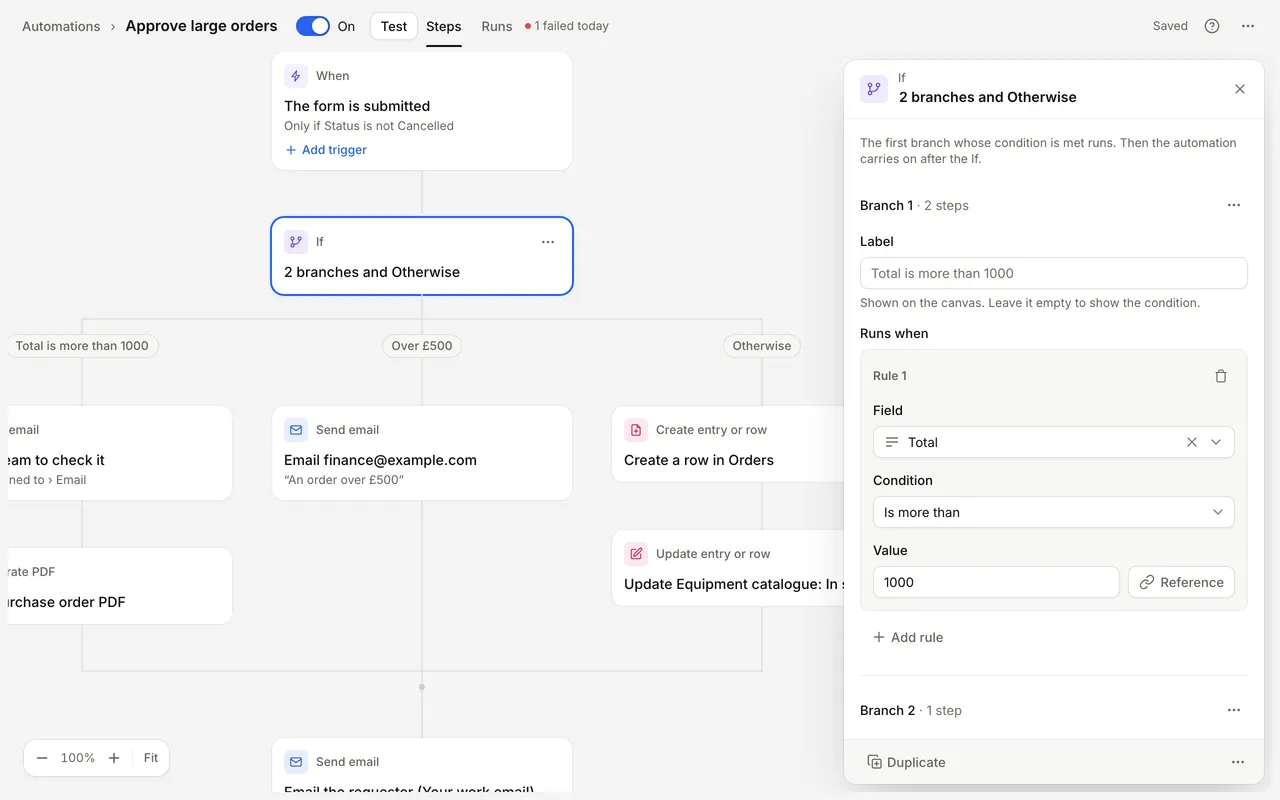
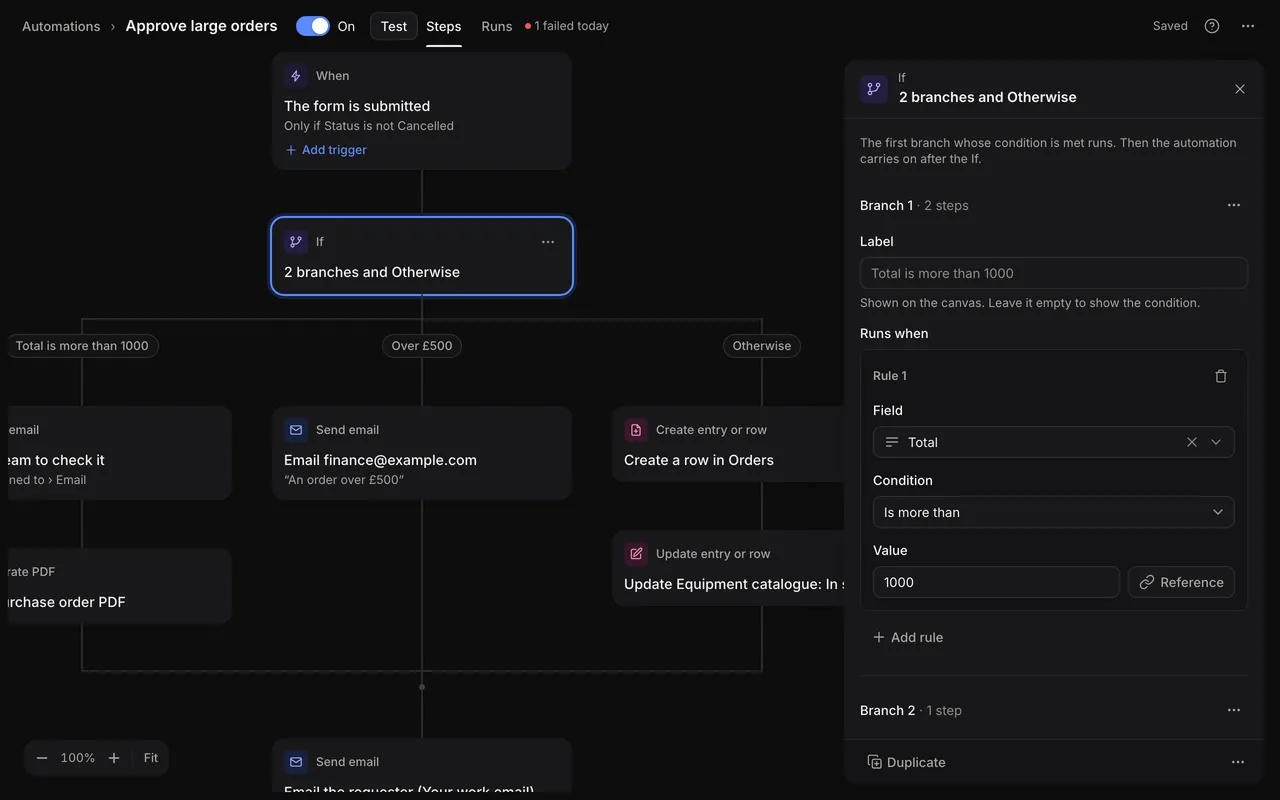
After the chosen branch, the run carries on with the step below the If.
Switch
Runs different steps for each value of an answer.
- Switch on: the answer or value to check.
- Each case has the values it Matches and an optional Label. For a choice question, tick the options; otherwise type values separated by commas.
- Add case adds one. Add a case for each option fills them in from a choice question.
- Otherwise runs when no case matches.
For each
Repeats the steps inside it for every item in a list, such as each row of a repeating group, each selected option or each record from Find records.
- List to go through: the list.
Steps inside can use the current item. After the last item, the run carries on below the For each. A For each can sit inside another.
To leave an item and go on with the next one, end a list inside the loop with Skip to next item. A Stop inside a For each ends the whole run, not just the item.
Calculate
Works out values from answers and earlier steps, for later steps to use.
- Select + Add Calculation for each value. Give it an ID and an Excel-style formula such as
=SUM(1, 2). The formulas work as they do for calculated values in the form.
To keep a result on the entry, follow with Update entry or row.
Wait
Pauses the run and carries on later. Not available while someone fills in the form.
- For: an amount of minutes, hours, days or weeks.
- Until a date: a date or date and time answer, an optional amount before or after it, and a time (At). Leave At empty to use the answer’s own time, or midnight for a date.
- Until a day and time: the next chosen weekday at a time.
- Stop waiting if: an optional condition, checked when the wait ends. When it is met, the run is cancelled instead of carrying on.
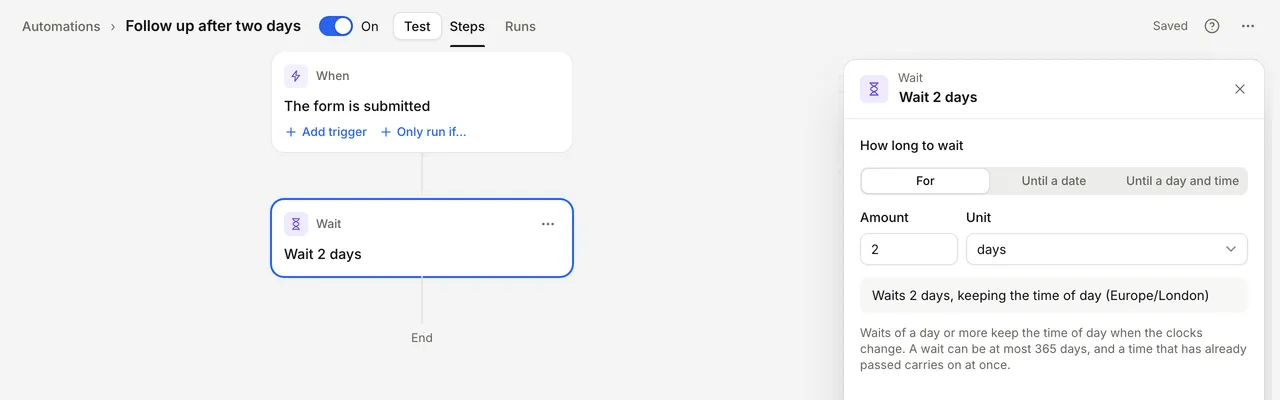
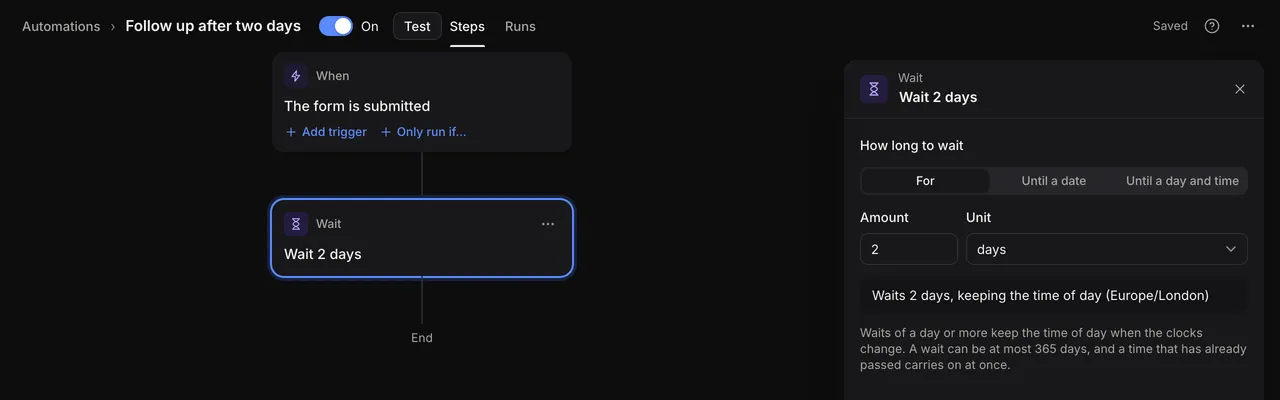
A sentence under the settings says when the wait ends, in the account’s timezone. Waits of a day or more keep the time of day when the clocks change. A wait can be at most 365 days, and a time that has already passed carries on at once. See Waiting runs.
Stop
Ends the run here. Nothing after it runs. Stop can only be the last step in a list, and a branch that ends with Stop doesn’t rejoin the steps below it.
- End the run as: Completed (the default), so the run shows as completed in Runs, or Failed, so the run shows as failed in Runs and the failure email goes out.
- Reason: for a failed Stop. Optional, up to 500 characters. It is shown in Runs and in the failure email.
A failed Stop suits a problem the automation finds for itself. For example, in an If branch for orders with no delivery address, add a Stop that ends the run as Failed with the reason “The order has no delivery address”. On the canvas it shows as “Stop · run fails”, and in the run its step says “Stopped, run marked as failed”.
Skip to next item
Leaves the current item of a For each and goes on with the next one. Once every item is done, the steps after the For each run as usual. On the canvas it shows as a “Next item” end cap.
It is only offered inside a For each, and like Stop it can only be the last step in a list. Use it in an If branch inside the loop to pass over items that don’t apply, or under If it fails so one item that fails doesn’t stop the rest. See When a step fails.
Records
Update entry or row
Changes answers or team fields.
- What to update: This entry (the entry the automation runs for), A row in a table, or Another record (an entry in a form).
- Then map each field to change to its new value.
While someone fills in the form, only This entry can be updated.
Create entry or row
Adds an entry to a form or a row to a data table.
- Form or data table: where to add it.
- Then map values into its fields.
Delete entry or row
Deletes an entry or a data table row.
- Entry or row to delete: choose it with the value picker.
This can’t be undone. Where you might need the record later, update a field such as a status instead.
Find a row or entry
Looks up the first matching row in a data table, or entry in a form.
- Data table or form: where to look, then the conditions a match must meet.
- Only entries that are overdue: offered when looking in a form.
- Sort by: decides which match counts as the first, such as Newest first.
- If nothing is found: Carry on or Stop this automation.
Later steps can use the fields of what it found.
Find records
Finds up to 100 matching rows or entries as a list, for a For each or an email listing them.
- Data table or form and conditions, as for Find a row or entry.
- Sort by: Newest first, Oldest first or a field, with Order.
- At most: how many to find, up to 100. The default is 25.
Stages
These steps work with the form’s process. They need an entry, so they aren’t available in Every day / week automations.
Move to stage
Moves the entry to another stage.
- Move entries to: the stage.
- Comment (optional): shown in the entry’s history.
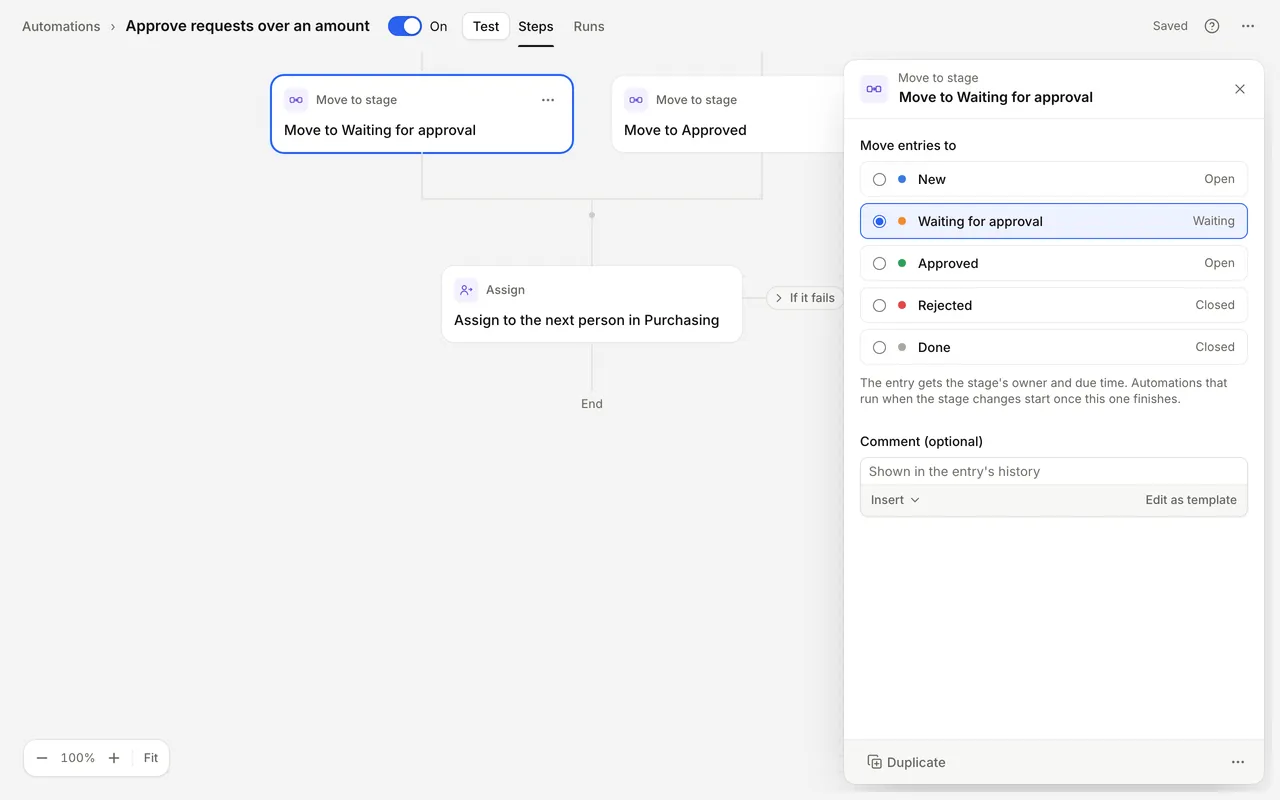
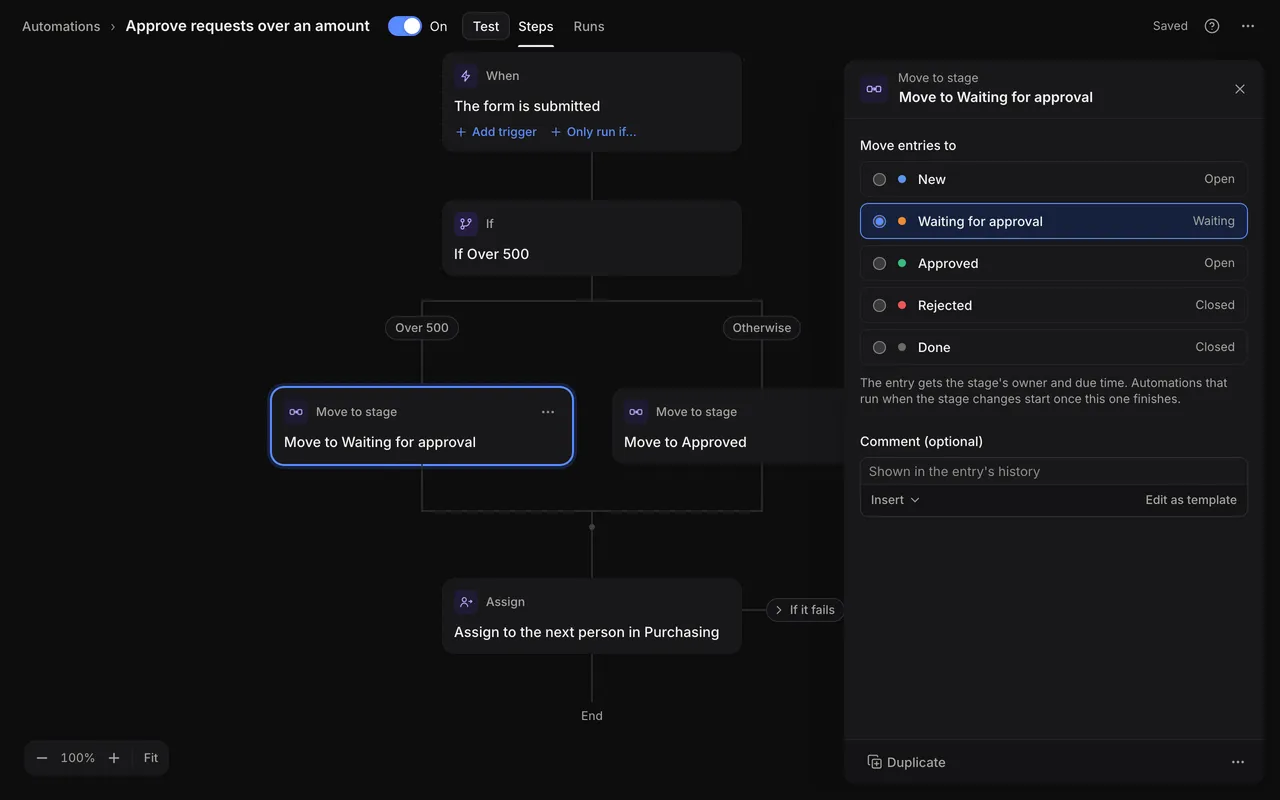
The entry gets the stage’s owner and due time. Automations that run when the stage changes start once this one finishes.
Assign
Gives the entry to someone. See Owners and due dates.
- Assign to: Next in a group (people in the Group take turns, in the order they joined, with Skip people marked away), A person, or From a team field (the person a Team member field holds).
- When it fails: see When a step fails.
If nobody can take the entry, the step fails. Unless you choose otherwise under When it fails, the run stops and is marked as failed.
Request approval
Asks people to approve or reject the entry by email. See Approvals.
- Who to ask: The stage’s approvers, as set on the Process page, or Other people, with their own Approvers and rule. Other people suit escalation: their decision moves the entry on, whatever the stage asked for.
- Message (optional): added to the approval email.
- Links work for: As long as the stage says, or a number of days.
People who already have a request aren’t asked again.
Remind approvers
Sends everyone who hasn’t decided a new link. Their old links stop working.
- Message (optional): added to the reminder.
Use it with a Wait, or with the In a stage too long trigger, to chase approvals.
Documents
Generate PDF
Creates a PDF from the entry and saves it as a file on the entry.
- File name: for example
Purchase order.pdf. You can insert values. - Content: Inline HTML written here, or a reusable content Template. See Templates.
- Layout: No layout, Default layout or Template layout.
- Generated file access: Admin only, or Admin and entry key, which also lets anyone with the entry’s key open it.
A later Send email step can attach the PDF.
Connected apps
Actions from your extensions and API connectors are listed here by name, once the extension is turned on in Extensions.
- Environment: which of the extension’s environments to call, such as a test or live one.
- Then map values into the action’s request.
- Retries and When it fails: see below.
Later steps can use the fields of the response.
When a step fails
Send to webhook, Send Slack message, app actions and Assign can fail: the other system doesn’t answer or answers with an error, or nobody can take the entry. Two settings decide what happens then.
If it fails
Steps that run when the step fails, such as an email to your team. Select If it fails beside the step on the canvas to open that list and add steps to it.
When it fails
After the steps under If it fails have run, or straight away when there are none, When it fails decides how the run goes on. Choose it in the step’s settings.
| Option | What happens | Use it when |
|---|---|---|
| Stop and mark the run as failed | The default. The run stops, shows as failed in Runs, and the failure email goes out. | You want to know about every failure, even when the steps under If it fails also tell someone. |
| Stop, with the run completed | The run stops and shows as completed in Runs. No failure email is sent. | The steps under If it fails deal with the problem, so nobody needs to look at the run. |
| Carry on with the next step | The run goes on with the step after the one that failed. This works without steps under If it fails too. | The rest of the automation should run anyway, or a later step uses this step’s error to decide what to do. |
On the canvas, the ending shows under the open If it fails path: a “Run fails” cap with a red dot, a “Stops” cap, or a “Then carries on” line back to the main line. In the editor, select that label to switch between the three.
When the steps under If it fails end with Stop or Skip to next item, that step decides instead. For example, in a For each over an order’s lines, a “Reserve stock” app action whose If it fails steps end with Skip to next item goes on with the next line when one line can’t be reserved.
The failure email goes to admins when the form’s Email admins when an automation run fails notification is on. See Notifications.
Retries
Steps that call another system also have Retries: Don’t retry, Retry once, Retry twice or Retry 3 times. Timeouts, network errors and server errors are tried again after a short wait. If the last try fails, what happens is set under When it fails. Requests aren’t retried while someone fills in the form.
Steps while someone fills in the form
| Step | Available |
|---|---|
| Calculate, If, Switch, For each, Stop, Skip to next item | Yes |
| Find a row or entry, Find records | Yes |
| Update entry or row | This entry only |
| Send to webhook | GET only, without retries |
| Send email, Send Slack message, Generate PDF | No |
| Create entry or row, Delete entry or row | No |
| Wait | No |
| Move to stage, Assign, Request approval, Remind approvers | No |
| App actions | No |