
Forms
Notifications
Email your team about new entries, send respondents a confirmation and alert admins when an automation run fails, all without building an automation.
Notifications send emails each time someone submits a form, and can alert admins when one of the form’s automations fails. They are quick to set up and need no automation.
Open a form in the builder and select Notifications, or select Email notifications from the form’s menu on its entries page.
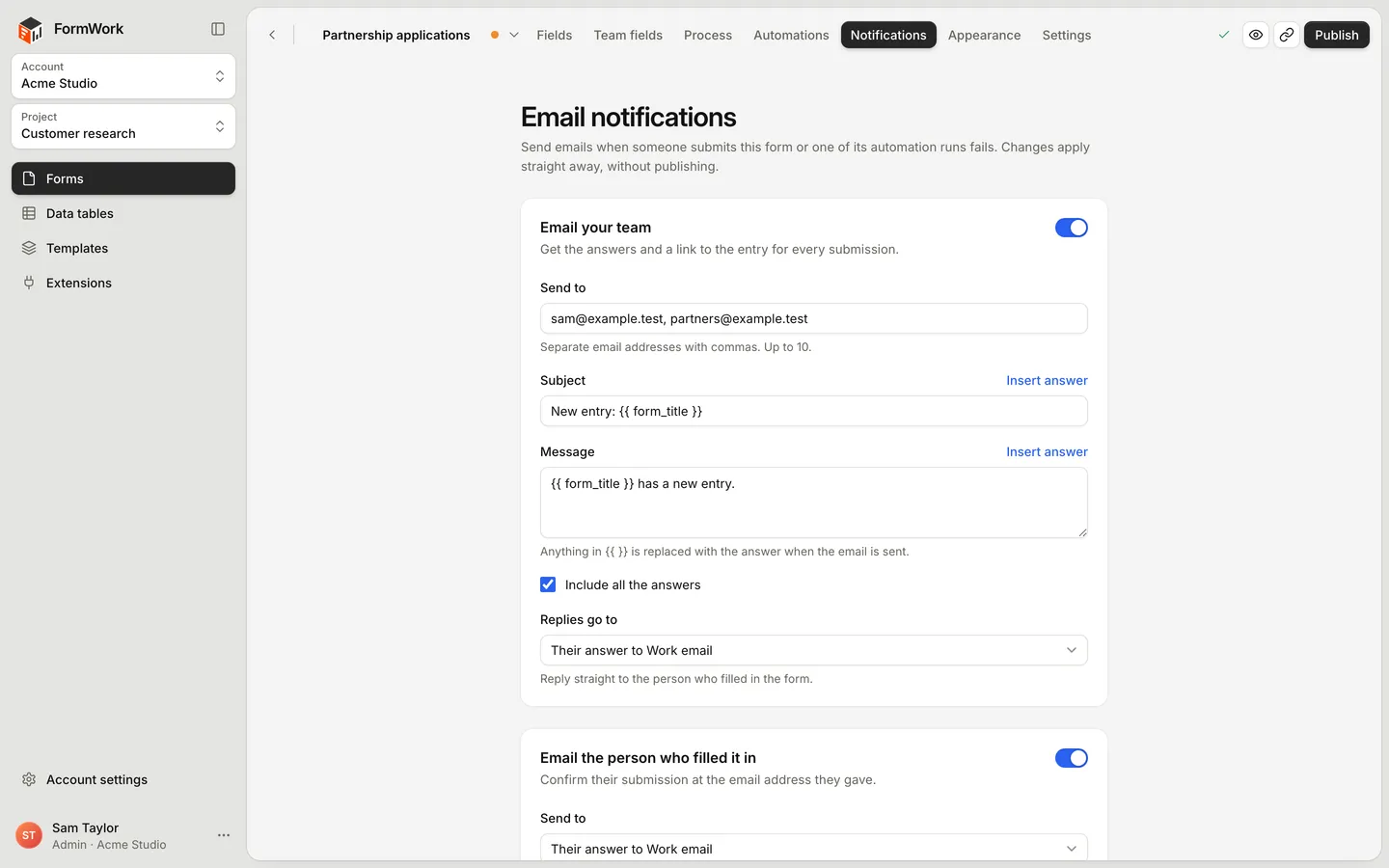
Notifications belong to the form, not a version. Select Save changes and they apply to the next submission, without publishing.
Email your team
Turn on Email your team to get the answers and a link to the entry for every submission.
| Setting | What it does |
|---|---|
| Send to | Up to 10 email addresses, separated by commas. Your own address is filled in when you first turn it on. |
| Subject | Defaults to “New entry: {{ form_title }}”. |
| Message | Text above the answers. Defaults to ”{{ form_title }} has a new entry.” |
| Include all the answers | Lists the answers under the message. On by default. |
| Replies go to | Choose Their answer to an email question so that replying goes straight to the respondent, or No reply address. |
The email has an Open entry button that takes your team to the entry.
Email the person who filled it in
Turn on Email the person who filled it in to send a confirmation to the address the respondent gave. The form needs an email question first; one that repeats cannot be used.
| Setting | What it does |
|---|---|
| Send to | The email question to send to, shown as Their answer to followed by the question label. |
| Subject | Defaults to “We’ve received your answers”. |
| Message | Defaults to “Thanks for filling in {{ form_title }}. Here’s a copy of what you sent.” |
| Include a copy of their answers | Lists their answers under the message. On by default. |
| Reply-to address | Optional. One address where replies to the confirmation go, such as your support inbox. |
If the respondent’s answer is not a valid email address, no confirmation is sent. The submission still goes through.
If the form’s process shows respondents their progress, the confirmation also has a See progress button. See Respondent status.
Insert answers
Select Insert answer above a subject or message to add the Form title or the answer to any question. It appears as a placeholder such as {{ form_title }} and is replaced with the answer when the email is sent. A placeholder for a question with no answer is left blank.
In messages, leave a blank line to start a new paragraph.
To place the See progress link inside your message, type {{ status_link }}.
What the answers look like
When answers are included, they are listed in form order with each question’s label:
- Empty answers, and questions or pages hidden by conditional logic, are left out.
- Display-only content, such as headings and paragraphs, and password answers are never included.
- Hidden fields are included in the team email but not in the respondent’s copy.
- Choices show their labels, yes-or-no questions show “Yes” or “No”, files show as “1 file” or the number of files, and signatures show as “Signed”.
- Repeating questions and groups are numbered, for example “Guest 1” and “Guest 2”.
Email admins when an automation run fails
Turn on Email admins when an automation run fails to email every admin in your account when one of this form’s automations fails: a step fails and the run is marked as failed, or a Stop ends the run as failed. The email names the automation, the step that failed and the error, or the Stop’s reason, and has an Open the run button.
A failed step whose When it fails is Stop, with the run completed or Carry on with the next step doesn’t send this email. See When a step fails.
Admins get at most one email an hour for each automation, so a run of failures does not flood their inbox. To investigate failures, see Runs and testing.
Who sends the emails
Emails come from FormWork, with your account name as the sender, for example “Acme via FormWork”. They are sent after the submission is saved, so a problem sending an email never stops a submission.
Submissions made through a draft preview link or Preview are real, so they send notifications too.
When you need more
Notifications cover the common cases. For anything else, such as emailing a different person depending on an answer, sending an email when an entry moves to a new stage, or attaching a generated document, use an automation. See Automations and Steps.