
Process and stages
Respondent status
Let the people who submit a form follow their request's progress on a private, read-only status page, while your stage names and comments stay internal.
Respondent status lets the person who submitted an entry follow its progress on a read-only page. They see a label you choose for each stage, such as “Being reviewed”, never your stage names, owners, comments or answers.
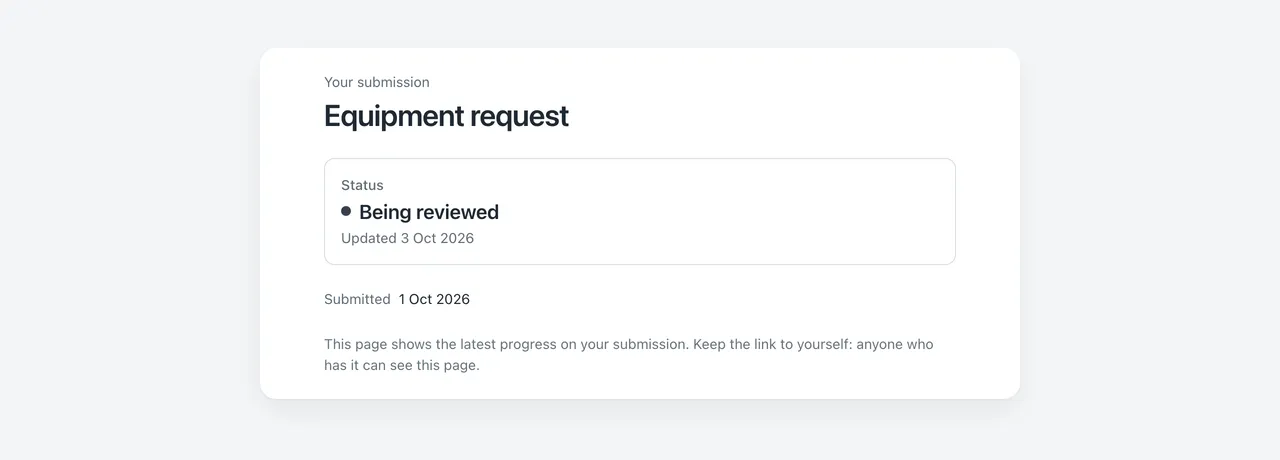
It is off by default. Leave it off for internal or sensitive processes, such as hiring decisions, complaints or internal approvals.
Turn on respondent status
- On the form’s Process tab, find Let people who submit see progress? at the end of the page.
- Turn it on. Stages without a label get neutral wording you can change: “In progress” for open stages, “Being reviewed” for waiting stages and “Completed” for closed stages.
- On each stage card, check What respondents see.
- Publish the form.
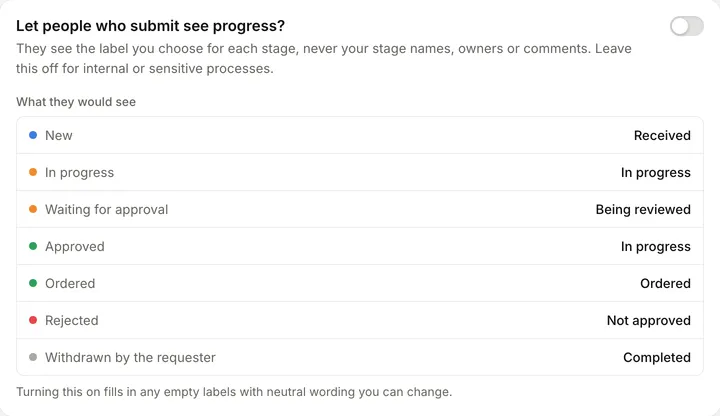
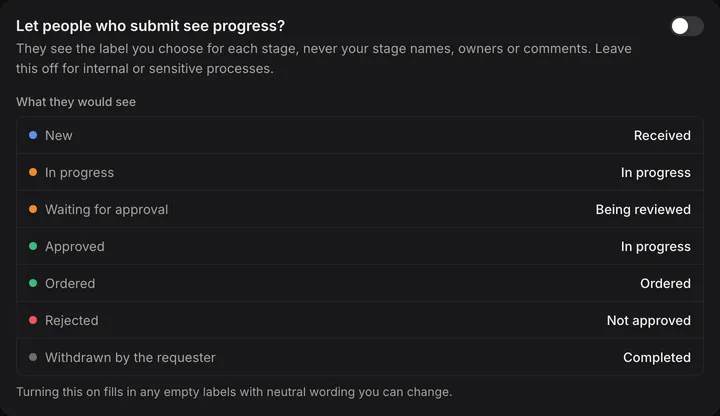
The card previews what people see at each stage.
Every stage that isn’t closed needs a label before you can publish. A closed stage without a label shows the label of the stage before it.
The Triage and resolve process template, and the Approve requests over an amount automation recipe, turn respondent status on for you.
How respondents get the link
Each entry has one status link. It’s created the first time it’s needed:
- The confirmation email. If the form’s Email the person who filled it in notification is on, the email gets a See progress button. See Notifications.
- The success message, or an automation’s email. Insert Status link for respondents (
entry:current.stage.status_link) where you want it. See Inserting values.
The link is the same wherever it appears.
The value What respondents see (entry:current.stage.respondent_label) can also be inserted, to show the current label in a message.
What the status page shows
- the form’s title
- the current label, and when it last changed
- when they submitted
The page uses the form’s appearance, so it looks like the form. Dates use your account’s timezone. “When it last changed” only counts moves that changed the label, so moving between two stages with the same label doesn’t show as an update.
Anyone with the link can see the page, and the page says so. Opening it changes nothing.
Copy or turn off a status link
Once an entry has a status link, the entry’s menu on the entry page has:
- Copy status link
- Turn off status link, which stops the link working at once. The next email or success message that includes the link creates a new one.
When links stop working
A status link stops working:
- 90 days after the entry enters a closed stage. The page then says “This status link has expired”.
- When you turn respondent status off for the form, until you turn it on again.
- When the link is turned off, or the entry is deleted.
Links that don’t work for any reason other than expiry show “This status link isn’t available”, without saying why.
What stays internal
Stage names, owners, due times and comments are internal to your team. In places respondents see, such as the success message and the text or default values of fields, you can only use the stage’s respondent label and the status link. Publishing is blocked if anything else about the stage is shown there.