
Entries
Team fields
Add internal fields to every entry, such as an assignee, a reference number or notes, that your team fills in and respondents never see.
Team fields are internal fields your team fills in on each entry, such as who is handling it, a reference number from another system, or notes. People filling in the form never see them. They show in the side panel of every entry.
In the API, team fields are called metafields.
Add team fields
- Open the form in the builder and select Team fields. You can also select Add team fields on any entry of a form that has none.
- Add fields as you would in the form. You can use the same field types, settings, default values, logic and validation, plus the Team member type, which is only offered here.
- Publish the form. Team field changes go live with the rest of the draft. See Drafts and publishing.
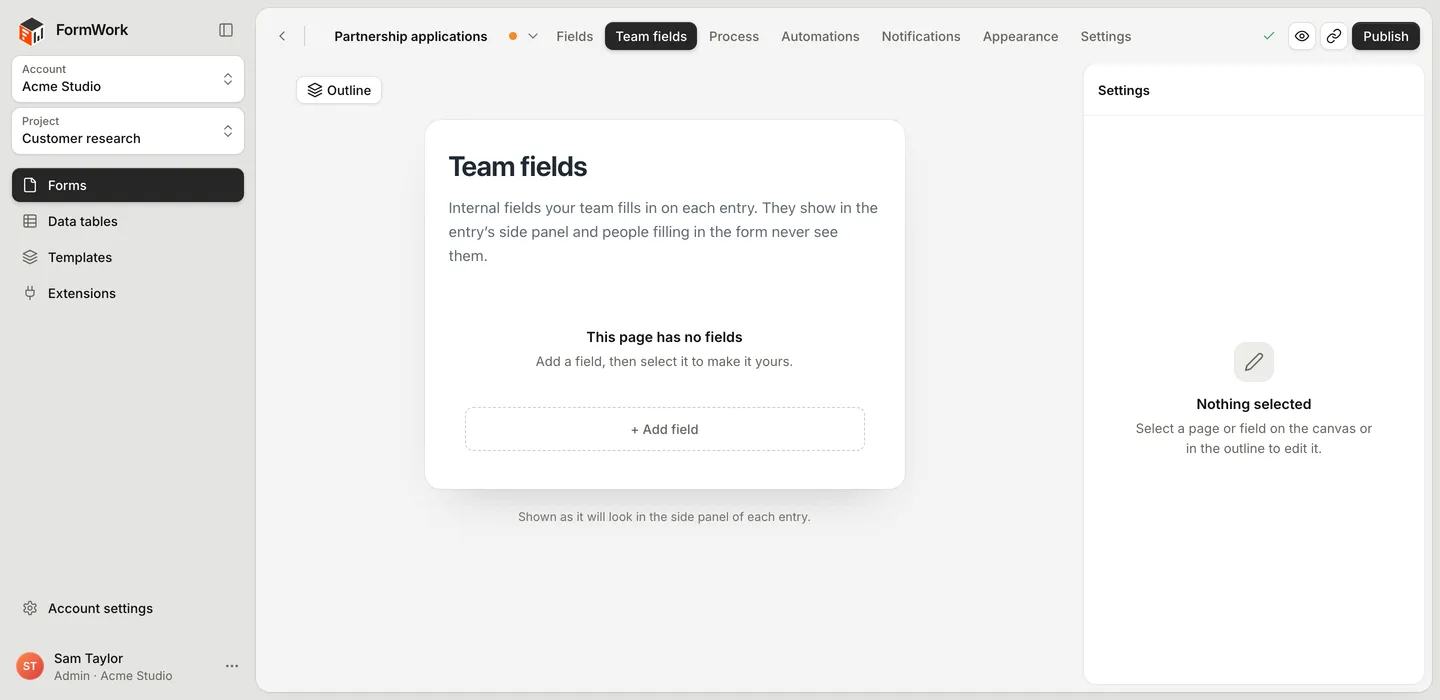
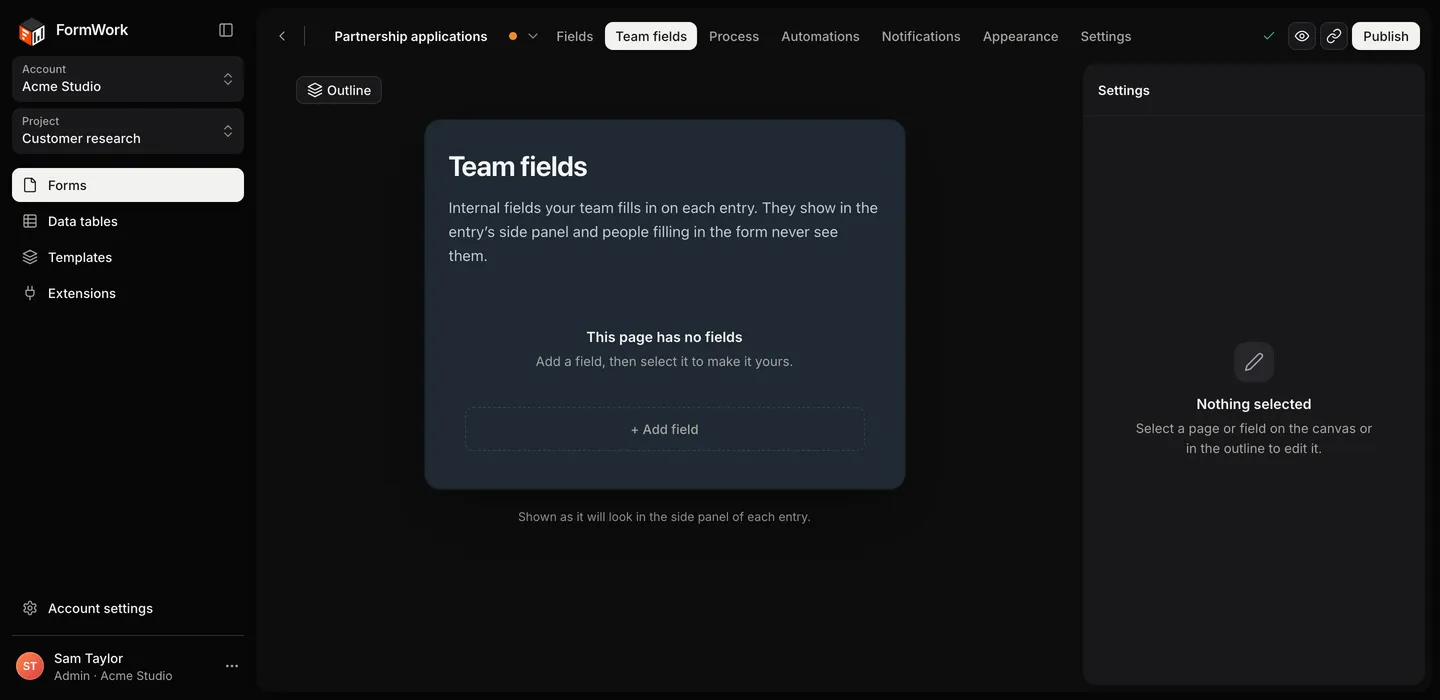
The canvas shows the fields as they will look in the entry’s side panel. Keep them short: a handful of fields is easier to scan than several pages.
When you publish changes
Existing entries move to the new team fields when you publish:
- New fields get their default value.
- Values are converted to a changed field type or set of options where possible. Values that can’t be converted are cleared, and the entry’s history shows FormWork clearing them.
Fill in team fields
Open an entry. The Team fields panel shows the fields, and changes save automatically. See The entry page.
You can also change team fields from the entries table:
- Edit a value in a team field column directly. See Edit team fields in the table.
- Select several entries and choose Set team field to give them all the same value.
History
Each entry’s team field changes are listed in the panel’s History tab and in the entry’s main History tab, for example “Priya Shah changed Priority from Normal to High”.
Changes made close together are grouped into one item rather than one per keystroke. A group closes after a minute without changes, ten minutes after its first change, or when you open the panel’s History tab. See Revisions and history.
Team members
A Team member field holds someone in your account, such as who an entry is assigned to. It edits like a dropdown of your team.
If the form has no process, a Team member team field adds an Assigned to me button above the entries table. If you need owners, due times and actions that move entries on, use a process instead. See Owners and due dates.
Find and report on team fields
Team fields work in views like answers do. Add them as columns, filter on them and sort by them. Exports include the team field columns of the view. See Views and filters.
The entries table’s Search entries box does not search team fields. Use a filter instead.
Automations
Team fields can start automations and be changed by them:
- Team field changes runs when a team field changes, for example when Priority becomes High.
- Team button is clicked runs when someone selects a Button field in the team fields panel, such as “Send to finance”.
- The Update entry or row step can set team fields.
- Team fields can be inserted in emails, conditions and other steps.
Changes made by an automation are recorded in the entry’s history under the automation’s name. See Triggers and Steps.
Turn a status field into stages
If you track progress with a Dropdown team field whose label includes “Status” or “Stage”, with its own options (not from a data table) and not repeatable, and the form has no process yet, the builder’s Process page offers to turn that field into stages (for example Turn Status into stages). Each option becomes a stage. When you publish, each entry moves to the stage that matches its value and the field is removed from the team fields. See Stages.
Good to know
- Team fields belong to the entry. Deleting the entry deletes its team fields.
- Team fields are hidden from respondents, not from your team. They are not a way to restrict what team members can see. See Team members and roles.