
Process and stages
Stages
Set up a process so a form's entries move through stages, each with an owner, a due time and the actions your team uses to move entries on.
A process is the set of stages a form’s entries move through after they arrive, such as New, Waiting for approval and Done. Each stage can have an owner, a due time and actions: the buttons your team uses to move an entry on. Forms without a process work as before.
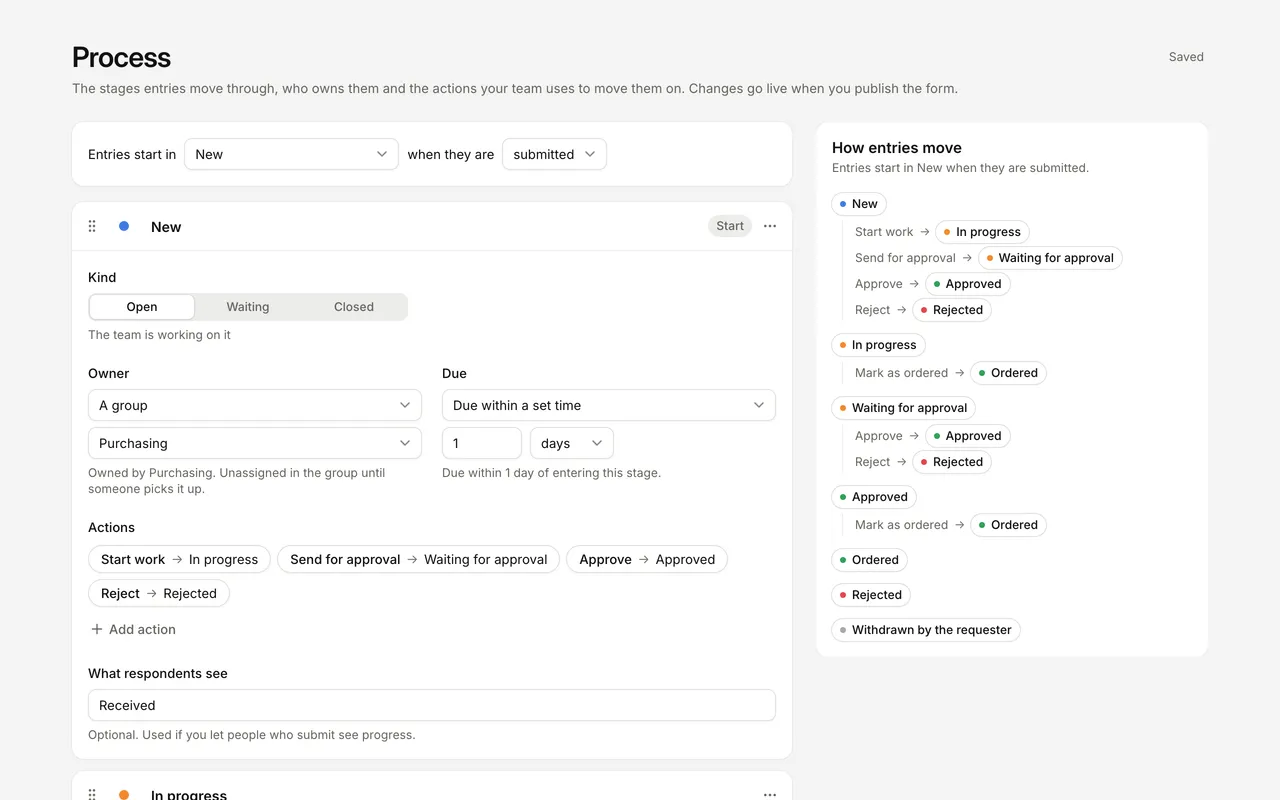
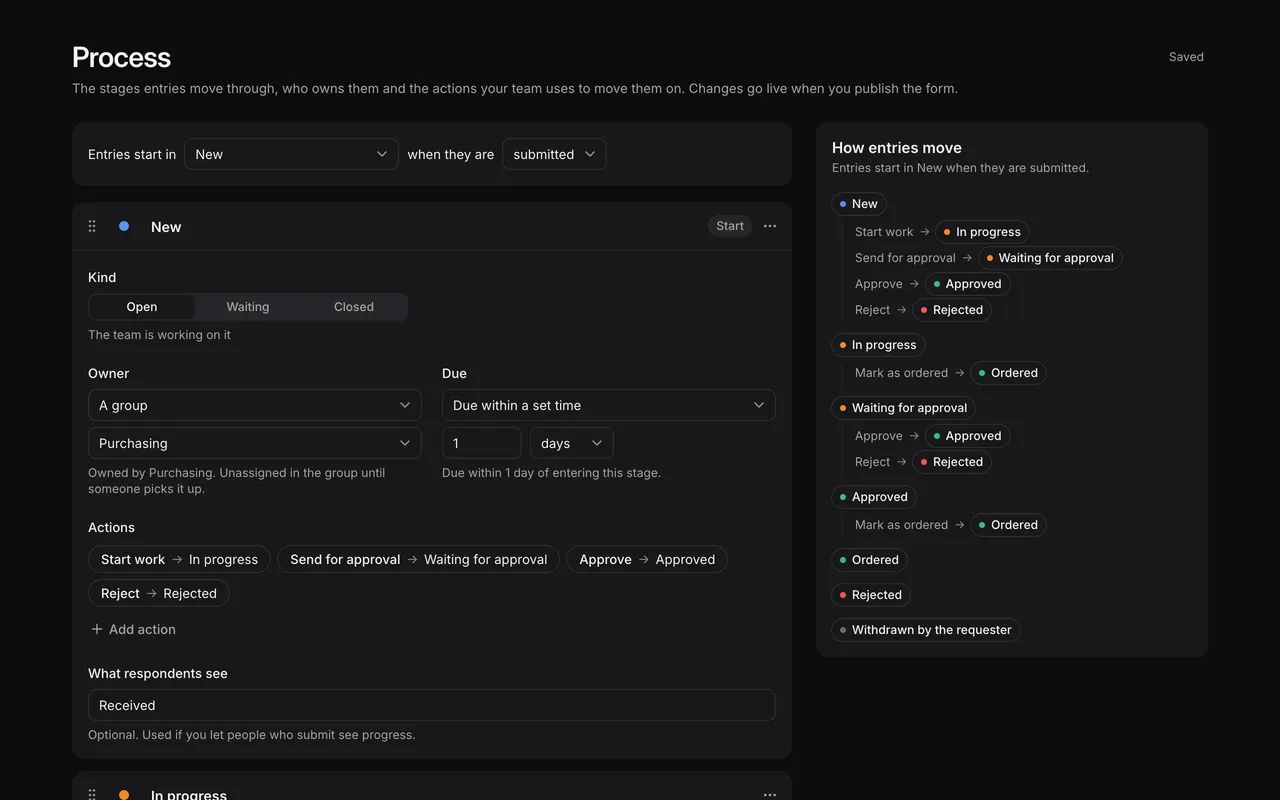
Only forms can have a process. Data tables and team fields don’t.
Set up a process
- Open the form in the builder and select the Process tab.
- Choose a starting point:
- Start from scratch gives you two stages, New and Done, with a Mark as done action.
- A template from Start from a template: Review and approve, Triage and resolve, or Apply, interview, decide.
- Turn Status into stages, if the form has a Status team field. See Turn a Status team field into stages.
- Edit the stages, then publish the form.
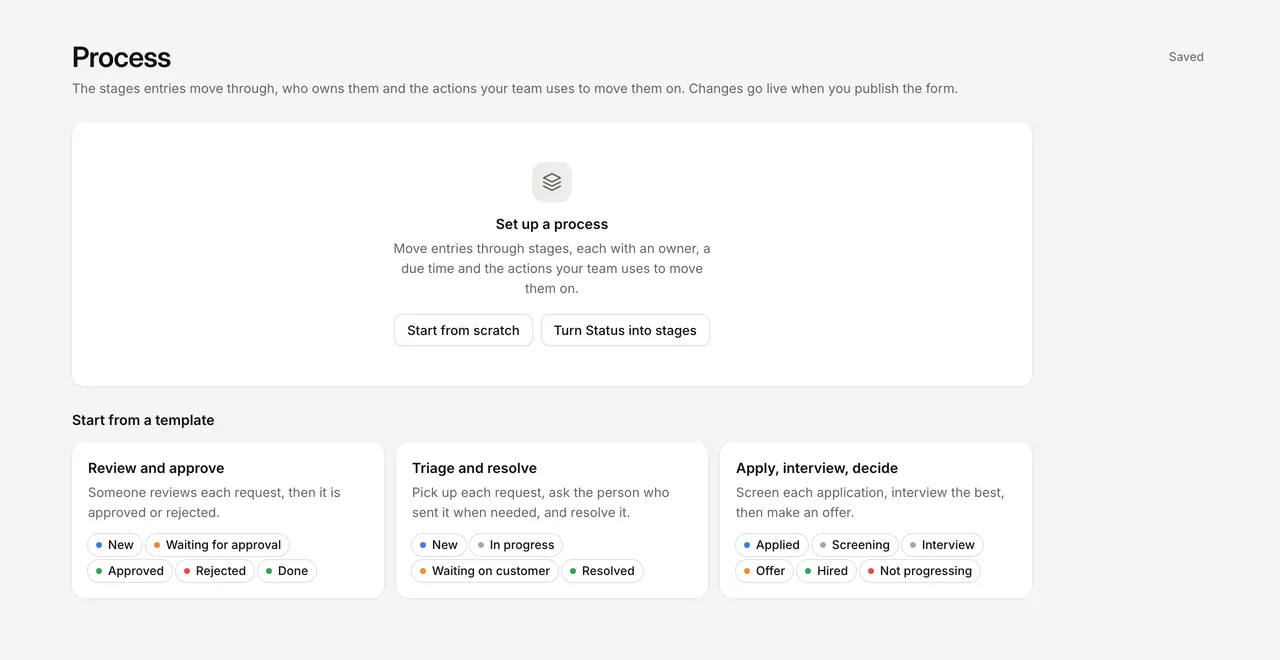
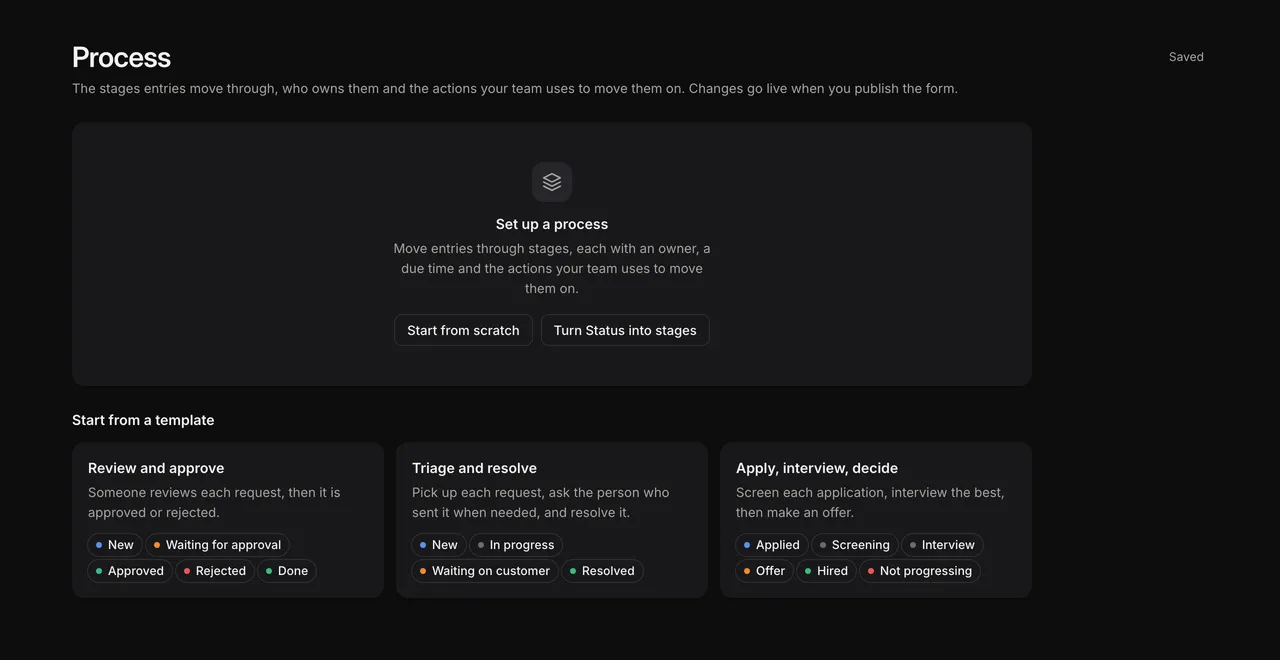
The process is part of the form’s draft. Changes are saved as you make them and go live when you publish the form. See Drafts and publishing.
Every entry follows the process of the form’s latest published version, whichever version it was submitted on. Preview entries on a draft follow the draft.
Where entries start
The first line on the Process page reads Entries start in [stage] when they are [submitted or started].
| Choice | When an entry enters the start stage |
|---|---|
| submitted (default) | When the respondent submits the form |
| started | As soon as the entry is created, before it is submitted |
The entry is in its start stage before any automation started by the submission runs, so automations and the success message can use the stage and owner.
Stage settings
Each stage is a card on the Process page. Drag a card by its handle to reorder stages, or use the card’s menu: Move up, Move down, Duplicate and Delete. Select Add stage to add one at the end.
| Setting | What it does |
|---|---|
| Name | Shown on the entry, in the entries table and in My work. Two stages can’t share a name. |
| Colour | The stage’s dot: Grey, Blue, Green, Amber or Red. Select the dot to change it. |
| Kind | Open, Waiting or Closed. See below. |
| Owner | Who owns entries when they enter the stage. See Owners and due dates. |
| Due | How long the team has before an entry in this stage is overdue. See Owners and due dates. |
| Needs approval | Waiting stages only. Sends approval requests when an entry enters the stage. See Approvals. |
| Actions | The buttons people use to move entries on from this stage. |
| What respondents see | The label shown to the person who submitted, if you let them see progress. See Respondent status. |
Stage kinds
| Kind | Meaning |
|---|---|
| Open | The team is working on it. |
| Waiting | Waiting for an approval or for someone outside the team. Only waiting stages can need approval. |
| Closed | Finished. Closed stages have no owner and no due time, and their entries don’t appear in My work. |
A process needs at least one closed stage.
Actions
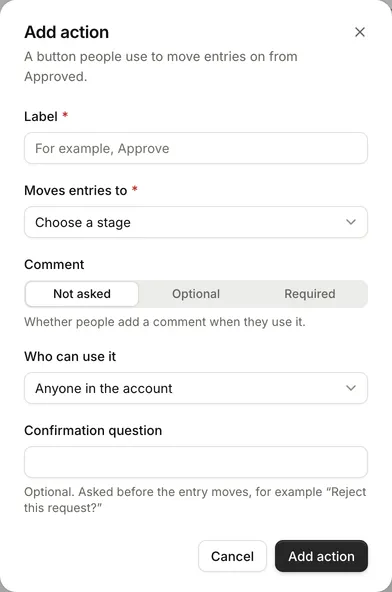
Actions are the buttons on an entry that move it to another stage, such as Approve or Send for approval. Select Add action on a stage card, or select an existing action to edit or remove it.
| Field | What it does |
|---|---|
| Label | The button text. Up to 40 characters. |
| Moves entries to | The stage the entry goes to. |
| Comment | Not asked, Optional or Required. Asks for a comment when someone uses the action. |
| Who can use it | Anyone in the account, The owner, People in a group or Account admins only. |
| Confirmation question | Optional. Asked before the entry moves, for example “Reject this request?”. |
A stage can have up to 10 actions.
Before you publish
The Process page lists anything that stops the form publishing, on the stage it belongs to. You need to fix these:
- Every stage needs a name, and names must be different.
- The process needs at least one closed stage.
- Every open or waiting stage needs a way out: an action, an approval outcome, or a Move to stage step in one of the form’s automations.
- Every action needs a label and a stage to move entries to.
- Owners, groups and team member fields you chose must still exist.
- Stages that need approval need approvers, and a stage to go to when approved and when rejected.
- If people who submit can see progress, every stage that isn’t closed needs a label for them.
Move entries between stages
On the entry page, the process bar shows the entry’s stage, owner and due time, and the actions you can use.
- The first three actions are buttons. Others are under More actions, along with any you can’t use and why (“Only the owner can use this”).
- An action with a required or optional comment, or a confirmation question, opens a small dialog first. Comments can be up to 2,000 characters.
- After a move, the message offers Undo for a few seconds, but only when the move started no automation and sent no approval requests.
- An entry that hasn’t been submitted yet shows “This entry joins the process when it is submitted.” when the process starts on submission.
Account admins also get Move to any stage…, which moves the entry to any stage and needs a comment.
For the rest of the entry page, including its history, see The entry page.
Work with stages in the entries table
For forms with a process, the entries table shows:
- Stage, Owner and Due columns. Overdue entries show in red.
- A row of stage filters above the table: All and one per stage, each with a count. When there are more than two closed stages, they’re grouped under Closed. On narrow screens the filters become a single Stage menu.
- Quick filters: Assigned to me, Unassigned, Overdue (when a stage has a due time) and Waiting for my approval (when a stage needs approval).
The selected stage is part of the view’s filter, so you can save it in a view. See Views and filters.
To move several entries at once, select them and choose Move to…. You can use any action that every selected entry offers, and admins can choose Move to any stage with a comment. You can move up to 1,000 entries at a time. Entries that couldn’t move are listed with the reason, and the automations the moves start run in the background.
Automations and stages
Automations can react to stages and move entries:
- Triggers: Stage changes, Approval is decided and In a stage too long. See Triggers.
- Steps: Move to stage, Assign, Request approval and Remind approvers. See Steps.
A move made by an automation starts other “Stage changes” automations too. To stop loops, FormWork stops starting automations from a move when automation moves have followed each other more than 5 times in a row, or when the entry has moved more than 20 times in a minute. The move itself still happens; the automations it would have started are recorded as failed runs with the reason, in Runs and testing.
Publish process changes
When you publish, the publish review asks about entries already in the process, under Entries already in the process:
| Change | What you’re asked |
|---|---|
| You removed a stage that has entries | Which stage to move them to. Required. |
| You added a process to a form that already has entries | Which stage they start in, or Leave existing entries without a stage. Required. When the process starts on submission, this counts only submitted entries. |
| You changed the owner or due time of a stage that has entries | Whether to Apply to entries already in this stage. If you don’t tick it, they keep their owner and due time. |
Renaming a stage only changes its name. Entries already in it stay where they are.
If you delete every stage, the form no longer has a process and its entries no longer show a stage.
Turn a Status team field into stages
If you already track progress with a team field, you can turn it into stages. The Process page offers Turn [field] into stages when the form has no process and has a Dropdown team field whose own label contains “Status” or “Stage”. The field must have its own options, not options from a data table, and must not be repeatable.
- Select Turn [field] into stages.
- Check the dialog. Each option becomes a stage, in the same order, with the number of entries that will move into it. Entries with no value go to the first stage. If any automations use the field, the dialog lists them with what to use instead, for example a “Stage changes” trigger.
- Select Turn into stages, then adjust the stages.
- Publish the form. Entries move into the matching stage, and the field is removed from Team fields.
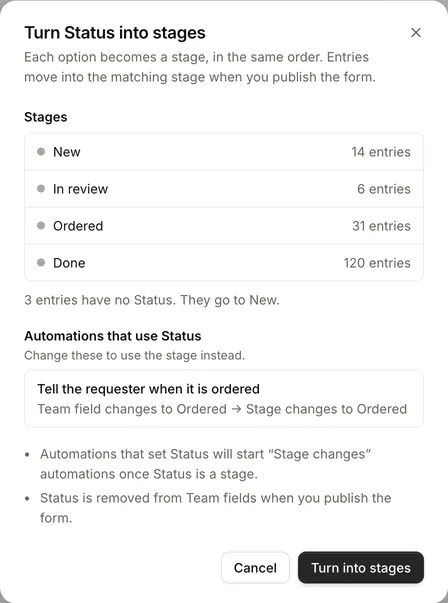
Once the field is a stage, automations that move entries start “Stage changes” automations, which setting a team field didn’t do. Update the listed automations before you publish.
Who can do what
| Who | Can |
|---|---|
| Anyone who can edit the form | Set up and change the process |
| Everyone in the account | Use the actions the stage allows them, take unowned entries, approve requests sent to them, send approval reminders |
| The entry’s owner | Pass the entry to someone else or unassign it, and use actions set to The owner |
| Account admins | Move any entry to any stage, assign any entry, withdraw approval requests, mark other people as away, create groups, and use actions set to Account admins only |
See Team members and roles for roles.
Limits
| Limit | Value |
|---|---|
| Stages in a process | 30 |
| Actions on a stage | 10 |
| Stage name | 60 characters |
| Action label | 40 characters |
| Confirmation question | 300 characters |
| Comment on a move | 2,000 characters |
| Entries in one bulk move | 1,000 |