
Automations
Inserting values
Insert answers, team fields, stage details, data table rows and earlier step results into automation steps, templates and form settings.
Most settings that take text, such as an email’s subject or a webhook’s body, can include values that FormWork fills in when the automation runs: an answer, a team field, the entry’s stage, a row from a data table or the result of an earlier step. This page explains how to insert them, what you can insert in each place, and the syntax behind them.
Insert a value
In an automation step’s text settings, such as Subject and Message in Send email:
- Place the cursor where the value should go.
- Select Insert, then An answer or value.
- In Choose a value, open a group, such as Current entry, and select the value. Use Search references to find it by name.
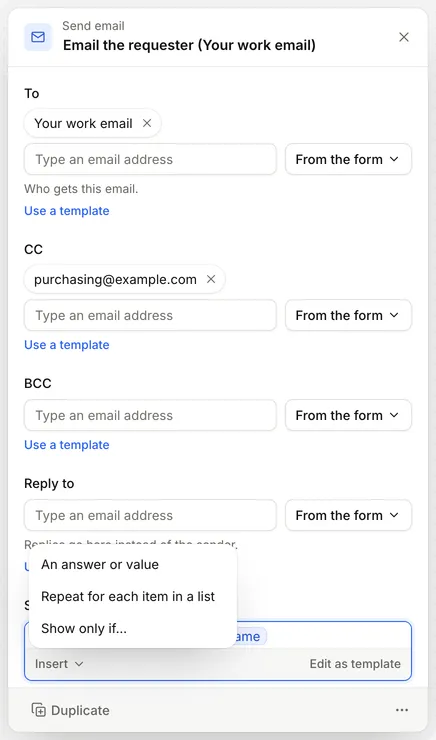
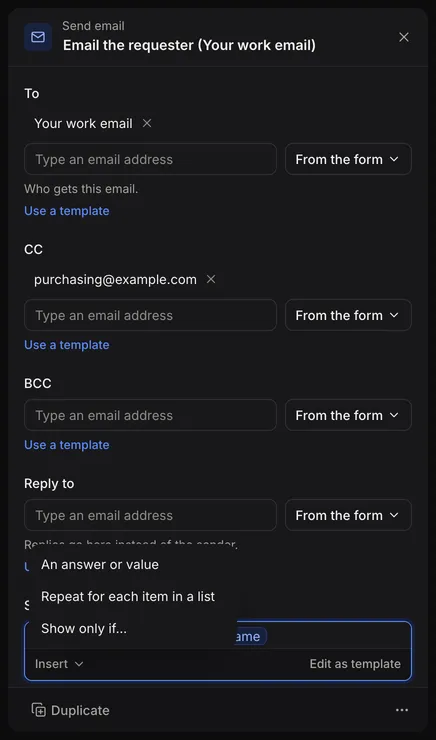
The value appears as a labelled chip. Select the chip to change or remove it.
The Insert menu has two more choices:
- Repeat for each item in a list repeats a section once for each item, such as each line of a repeating group.
- Show only if… shows a section only when a condition is true.
Select Edit as template to see and type the underlying syntax instead of chips. See Template syntax for loops, conditions and formatting.
Settings that hold a single value, such as Row to update or List to go through, have a picker button instead. Select it to open Choose a value, or type a fixed value where the box allows it.
On the Templates page and in the form builder, the editor has + Reference, + For loop and + If else buttons instead, and a Visual or Plain switch in place of Edit as template.
What you can insert
Choose a value groups values by where they come from. Which groups appear depends on where you are; see Where you can insert values.
Current entry
The entry the automation runs for.
| Choice | What it gives |
|---|---|
| This entry’s answers | Any answer, by question. For a question in a repeating group, choose Select instance key to pick one item, or Add formatters to combine them. |
| This entry’s team fields | Any team field. |
| Entry ID, Status, Created date, Updated date, Submitted date | Details of the entry. Status is the submission status. |
| Stage, Owner, Due, Overdue | The entry’s place in its process, when the form has one. Open Stage for its Name, Kind, Entered time, What respondents see and Status link for respondents. Open Owner for their Name and Email. |
| This entry’s answers before this save | Answers as they were before the save that started the run. Only for automations started by Answer changes or Team field changes. |
| This entry’s team fields before this save | The same for team fields. |
A team member field can be opened to give the person’s Email or Name. Use the email to send to them.
A dropdown or single choice question whose options come from a data table can be opened to give any column of the row the person picked, such as its price. The label reads “Selected row”. See Options from a data table.
This automation run
| Choice | What it gives |
|---|---|
| Trigger | What started the run: Trigger name, Trigger type and Trigger ID. Use it in a Switch to give each trigger its own steps. |
| Previous stage, New stage, Who moved it, Comment | What happened, for automations started by Stage changes. |
| Decision, Who decided, Comment | What happened, for automations started by Approval is decided. The decision is “Approved” or “Rejected”. |
| Fields changed in this save | The questions that the save changed. Only for Answer changes and Team field changes. |
| Earlier steps | The results of steps that run before this one, listed as “Step” with the step’s ID and type. See Step results. |
Current iteration
Inside a For each step, the item being worked on: Current index (counting from 0), Current key and item, which you can open for its fields. It also lists results of earlier steps inside the loop for the current item.
Data tables and forms
Any data table in the project, or the entries of any form. Open a table and choose All rows, or Add filters… to pick the rows that match conditions, then Select matching row to use the first match. Rows give their columns; entries give their answers, team fields and details.
Step results
Steps that produce something can be used by the steps after them. A step inside one If branch or Switch case can’t be used from another branch or case.
| Step | Results |
|---|---|
| Calculate | One result for each calculation, named by the calculation’s ID. |
| Create entry or row | created_id: the new entry or row’s ID. |
| Update entry or row | updated (true or false), updated_field_cnt and updated_entry_id. |
| Delete entry or row | deleted (true or false). |
| Generate PDF | file_id, filename, download_url, size_bytes, mime_type, access_level and generated. Use file_id as an email attachment. |
| Find a row or entry | found (true or false), plus the row or entry’s id, created_at and each column or answer. |
| Find records | count and records, a list of up to 100 rows or entries. Repeat over records with Repeat for each item in a list. |
| Send to webhook | status_code, body, raw_body, headers, error, and parsed_body when you describe the response. |
| Send Slack message | sent (true or false) and error. |
| Call an app | status_code, body, raw_body, headers and parsed_body. See Extensions. |
Choose a value lists earlier Calculate, Create entry or row, Update entry or row, Delete entry or row, Generate PDF and app steps. To use the results of a Find, Send to webhook or Send Slack message step, select Edit as template and type the reference, for example {{workflow:current.steps.find_entries.outputs.count}}.
Results from steps inside a For each are collected into a list, one value for each item.
Where you can insert values
| Where | What you can insert |
|---|---|
| Automation steps | Current entry, This automation run, Current iteration (inside For each), Data tables and Forms. |
| Templates on the Templates page | Current entry answers and details, Data tables and Forms, plus template values that each step fills in. See Templates. |
| The success message, content fields in Template mode, default values and choice options | This entry’s answers and details, Data tables and Forms. These are shown to the respondent, so team fields and automation results are not offered, and the only stage details are Stage (what respondents see) and Status link for respondents. |
| Conditional logic and validation | Answers, team fields, entry details, Data tables and Forms. See Conditional logic. |
| Views | Answers, team fields and entry details for filters and columns. See Views and filters. |
Publishing checks this. It stops with an error if something the respondent sees uses a team field or stage details meant for your team.
How inserted values are written
FormWork writes each value to suit where it goes:
- Email and PDF bodies: values are escaped as HTML, so an answer can’t add tags or links.
- Subjects, recipients and file names: values are written as plain text.
- Send to webhook address: values are encoded for the web address, so “Desk & chair” can’t change the address.
- Send to webhook body: a value inside quotes is written as JSON text. A single value outside quotes keeps its type: a number, true or false, a list or
nullwhen empty. The finished body must be valid JSON, and publishing checks it. - Send Slack message: bold, italic, links and lists become Slack formatting. Text in answers can’t create a Slack link or mention.
A value with nothing in it, such as an unanswered question, is left blank.
Reference syntax
Each inserted value is stored as a reference inside double braces. You only need this when you select Edit as template, use the API or check a run. The picker writes it for you and uses internal IDs, not labels.
{{entry:current.answers.first_name}}A reference has a source, an identifier and a path:
<source>:<identifier>.<path>| Source | Shape | Example |
|---|---|---|
entry | entry:current.answers.<question> | entry:current.answers.email |
entry:current.metafields.<team field> | entry:current.metafields.priority | |
entry:current.<detail> | entry:current.submitted_at | |
entry:current.stage, .owner, .due, .overdue | entry:current.owner.email | |
entry:previous.answers.<question> | entry:previous.answers.amount | |
workflow | workflow:current.steps.<step>.outputs.<result> | workflow:current.steps.calc.outputs.total |
workflow:current.trigger.<part> | workflow:current.trigger.comment | |
workflow:current.changed_fields | ||
iteration | iteration:<for each step>.item, .index, .key | iteration:each_line.item.qty |
data_table | data_table:<table>.rows[<filter>][0].cells.<column> | data_table:products.rows[cells.sku=A1][0].cells.price |
form | form:<form>.entries[<filter>][0].answers.<question> | form:orders.entries[status=complete] |
Entry details are id, status (draft while in progress, complete once submitted), created_at, updated_at and submitted_at. Trigger parts are id, type, label, from_stage, to_stage, actor, comment and decision.
Repeating groups
Answers inside a repeating group are addressed by the item’s key:
entry:current.answers.line_items[a1b2].qty
entry:current.answers.line_items[{iteration:each_line.key}].qty
In conditional logic, validation and content fields inside a repeating group, [current] means the item being shown: entry:current.answers.line_items[current].qty.
Filters
Filters go in square brackets after rows or entries. Data table columns start with cells., form questions with answers. and team fields with metafields..
| Filter | Meaning |
|---|---|
[cells.status=active] | Equals |
[cells.price:gte=10] | Uses an operator |
[cells.active=true&cells.price:lt=100] | All conditions must match |
[cells.code:empty], [cells.code:notempty] | Is or isn’t empty |
[cells.code:in=A,B,C] | Is one of a list |
[id={entry:current.answers.product}] | Compares with another value |
[overdue=true] | Form entries whose stage’s due time has passed |
[0] | The first match |
Operators are eq, neq, gt, gte, lt, lte, in, notin, contains, empty and notempty. Rows can also be filtered by id and created_at; entries by id, status, created_at, updated_at and submitted_at.
A reference inside a filter uses single braces and must give one value. Add [0] before a column or question when you want a single row or entry, not a list.
Formatters
Add a formatter after a vertical bar to change how a value is written, such as {{entry:current.answers.total|floatformat:2}}. See Template syntax.
Troubleshooting
- A value is blank. Check the run’s step details in Runs and testing. The question may be unanswered, or a filter may match nothing.
- A step’s results aren’t offered. The step must run before this one, and not in another If branch or Switch case.
- Stage values aren’t offered. The form needs a process.
- “Before this save” isn’t offered. It is only there for Answer changes and Team field changes triggers.
- A webhook body won’t publish. Check the quotes and commas around inserted values.