
This walkthrough sets up a travel request form in FormWork for Acme Studio, a fictional company: staff describe the trip and its costs, the form works out an estimated total, anything over £1,000 waits for the budget holder’s approval, and the travel desk books what has been approved. It is a configuration pattern, not a case study, and the amounts are examples.
What goes wrong with travel requests by email
Requests arrive by email with dates but no costs, or costs but no budget code. Approval is a “fine by me” in a thread nobody can find later. The travel desk can’t tell which requests wait on a manager and which wait on them, and neither can the traveller. The setup below gives each request one record, one stage and one owner at a time.
Build the travel request form
The form, titled “Travel request”, has three pages.
- Trip: Traveller, Department, Destination, a Travel dates group holding Depart and Return date fields, Purpose of trip (Client meeting, Conference, Team offsite or Training), Travel class (Economy or Premium economy) and a long text “Anything else we should know?”.
- Costs: Flights, Hotel nights, Nightly rate and Estimated total, all Number fields.
- Approval: Work email, Budget code and Budget holder’s email.
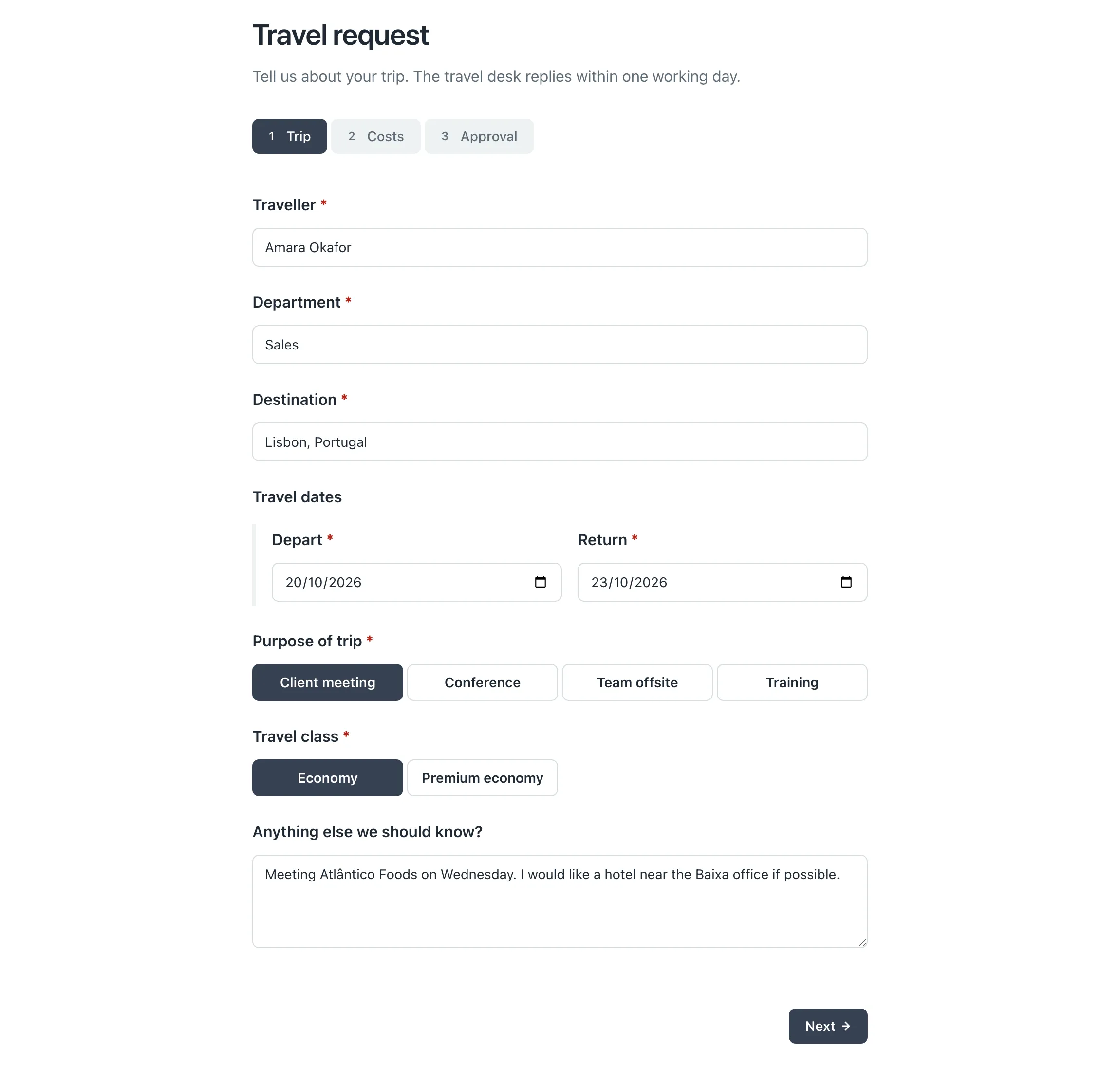
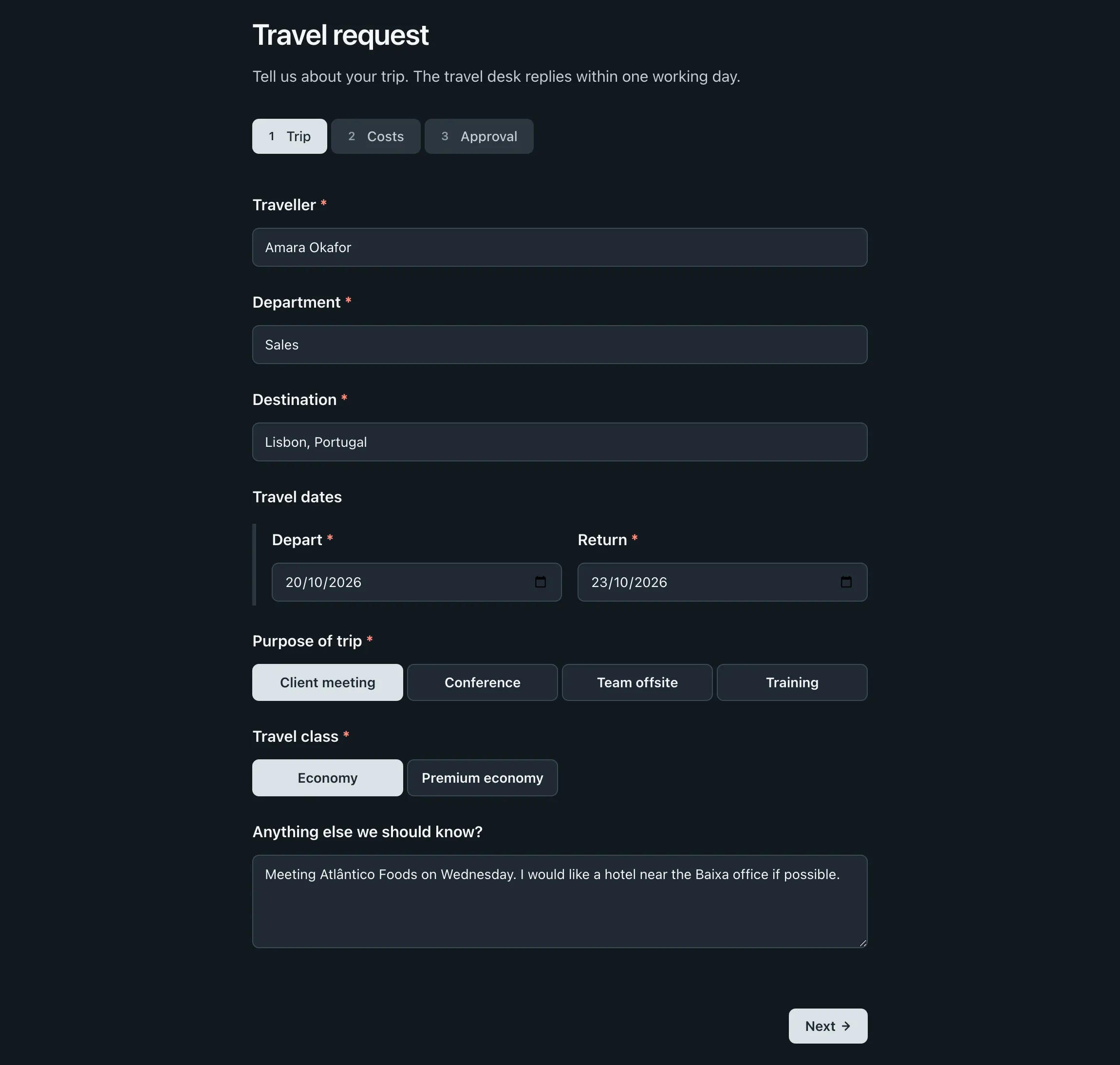
Make every cost field required, so the total is never left empty. If the Work email must be a company address, add a validation rule with Must match a pattern (regular expression), such as (?i)@acmestudio\.example$. FormWork can’t yet compare two dates in a rule, so a Return date before the Depart date isn’t caught; the travel desk checks dates when it books.
Anyone with the link can submit. FormWork doesn’t sign requesters in, so share the link internally and treat Traveller and Work email as what the requester typed.
Calculate the estimated total
Estimated total uses a Default value of Calculation:
= Flights + Hotel nights * Nightly rateTurn on Read only so requesters can’t type over it. The value is worked out on the server, and stays empty until every answer it uses has one. See calculated values and defaults and server-side logic.
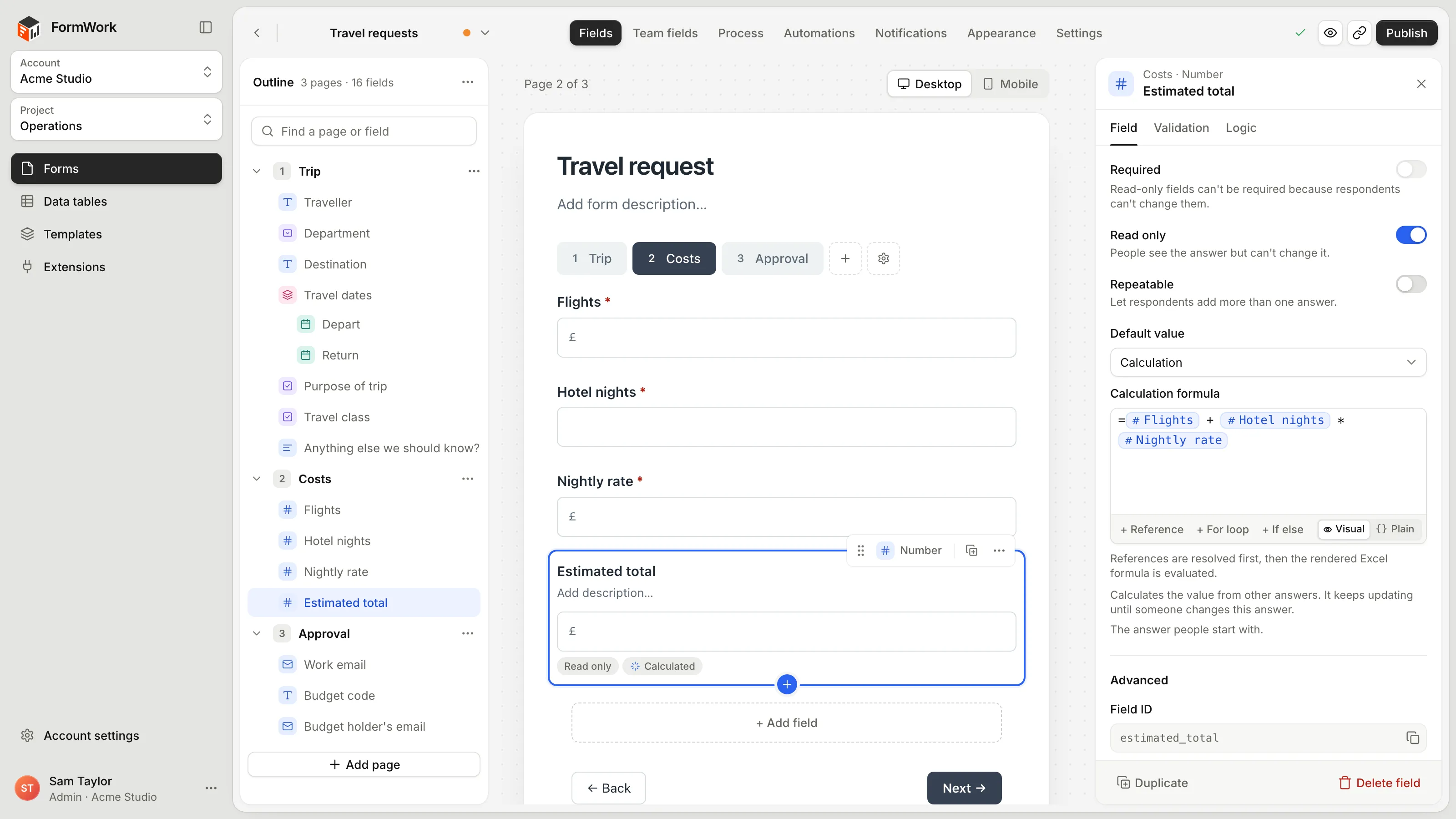
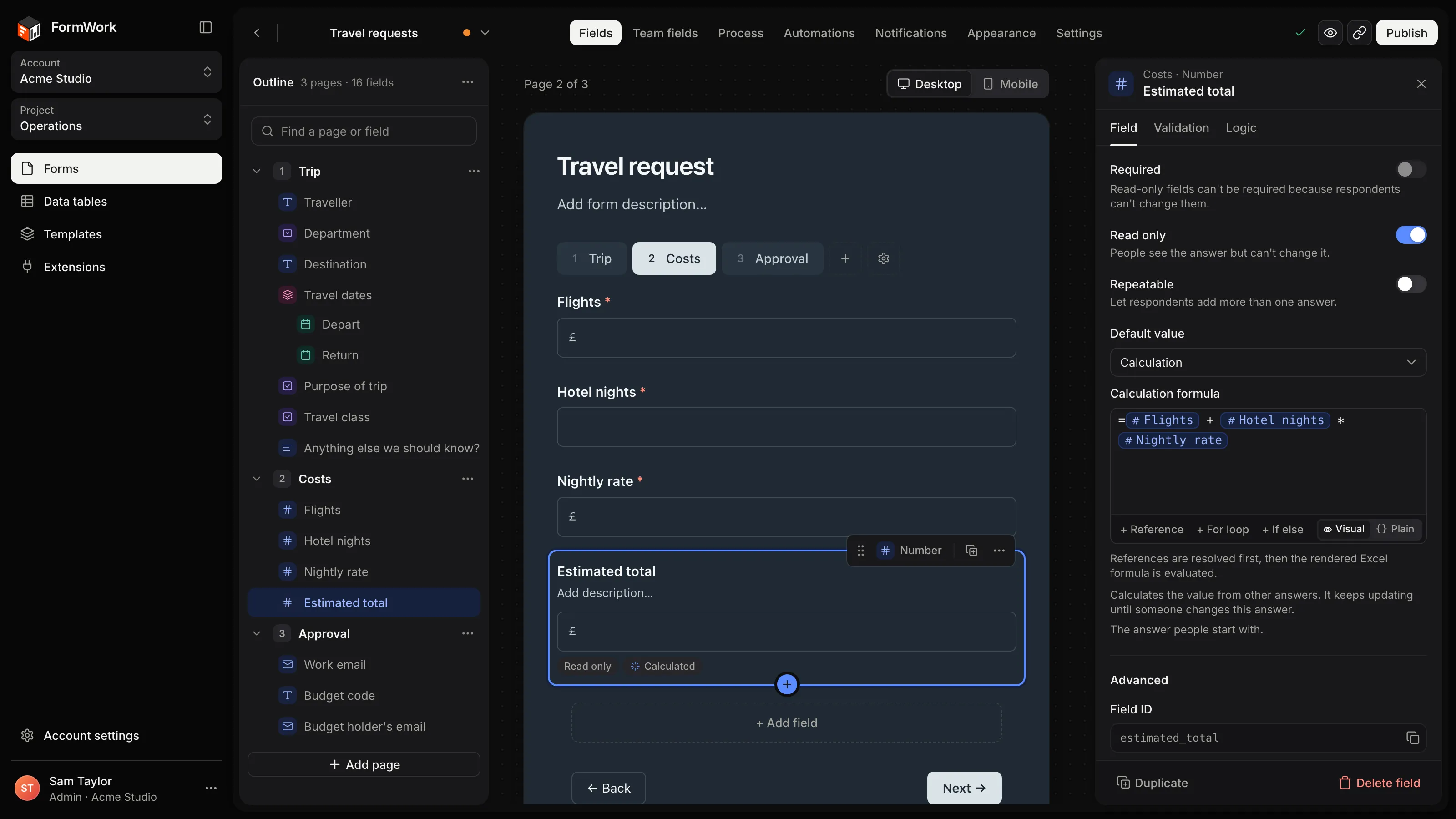
The fields hold numbers, not currencies. Ask requesters to give costs in pounds; FormWork won’t convert them.
In this example the requester types the Budget holder’s email, which means they choose their own approver. To avoid that, keep budget codes in a data table with a column for the holder’s address, make Budget code a Dropdown with options from it, and set Budget holder’s email to Look up from a dropdown with Read only on.
Set up the stages and owners
On the form’s Process page, set up these stages. Entries start in New when they are submitted.
| Stage | Kind | Owner and due time | Moves on with |
|---|---|---|---|
| New | Open | The Travel desk group, due within 1 day | Send for approval, Ready to book (account admins only), or Reject with a required comment |
| Waiting for approval | Waiting, needs approval | Keep the current owner, due within 2 days | The budget holder’s decision, or Back to travel desk with a required comment |
| Approved | Open | The Travel desk group, due within 2 days | Mark as booked, or Cancel with a required comment |
| Booked | Closed | None | |
| Rejected | Closed | None |
The automation below moves requests out of New as soon as they arrive. Anything still there was submitted while the automation was off or its run failed, and the travel desk routes it by hand.
The travel desk works from My work and the stage filters on the entries page. Requests unassigned in the group show as “Unassigned in Travel desk” until someone takes one. Due times count calendar hours, not working days, so a request that arrives on Friday afternoon is overdue on Saturday. See owners and due dates.
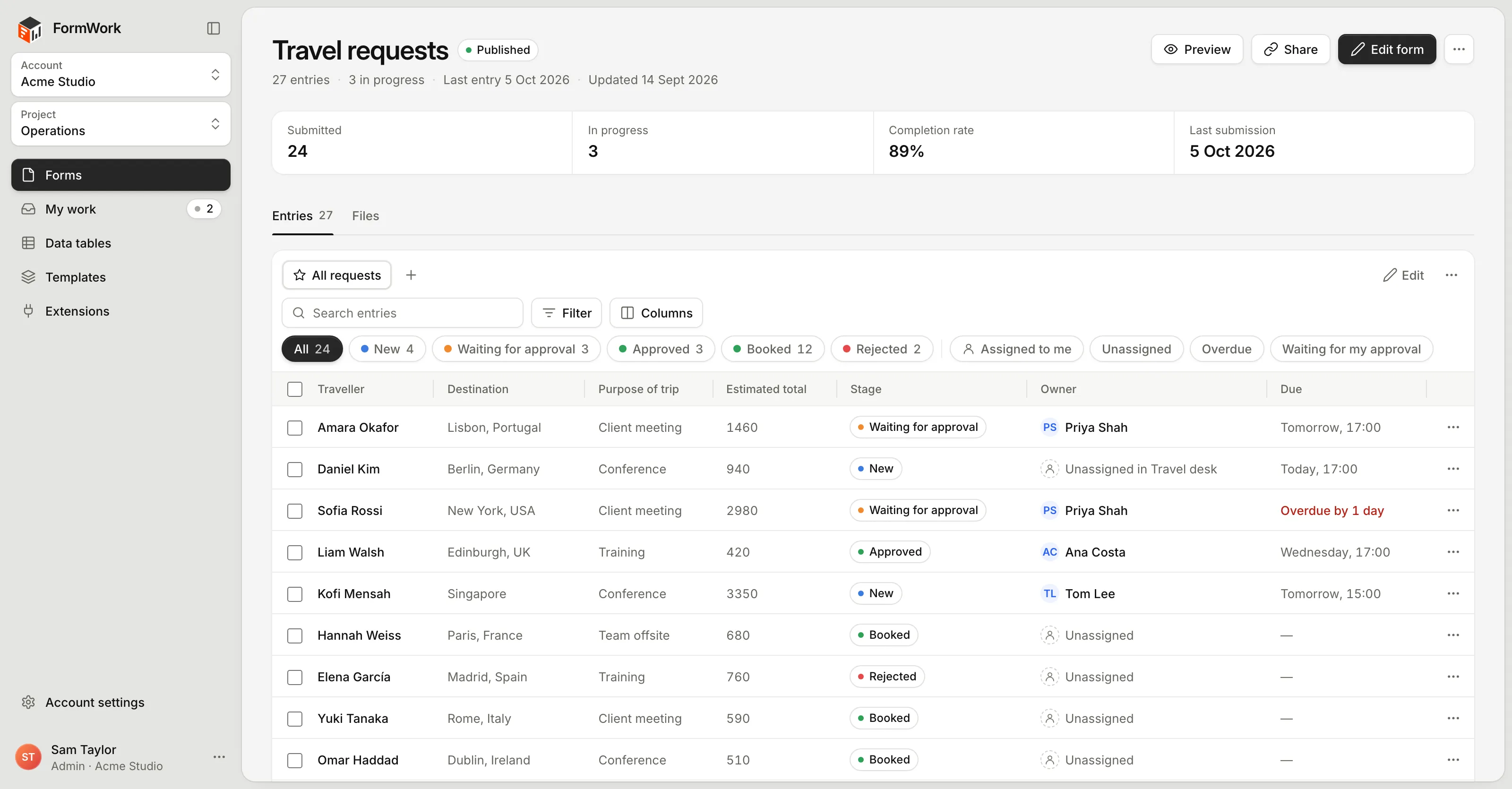
Add team fields for what the desk records: Booking reference, Actual cost and Desk notes. Requesters never see them.
Ask the budget holder to approve requests over £1,000
On Waiting for approval, turn on Needs approval and set:
- Approvals needed: Any one.
- Approvers: An email answer on the form, Budget holder’s email. Budget holders decide by link and don’t need a FormWork account.
- When approved, move to Approved; When rejected, move to Rejected.
- Links expire after: 5 days.
- Choose what approvers can see: the trip details, travel dates, Estimated total and Budget code.
Then add an automation called “Route travel requests”:
- When: Form is submitted.
- Send email to the Work email: “We have your travel request”.
- If Estimated total is more than 1,000: Move to stage Waiting for approval, then Send email to the travel desk’s shared address: “A trip is waiting for approval”.
- Otherwise: Move to stage Approved.
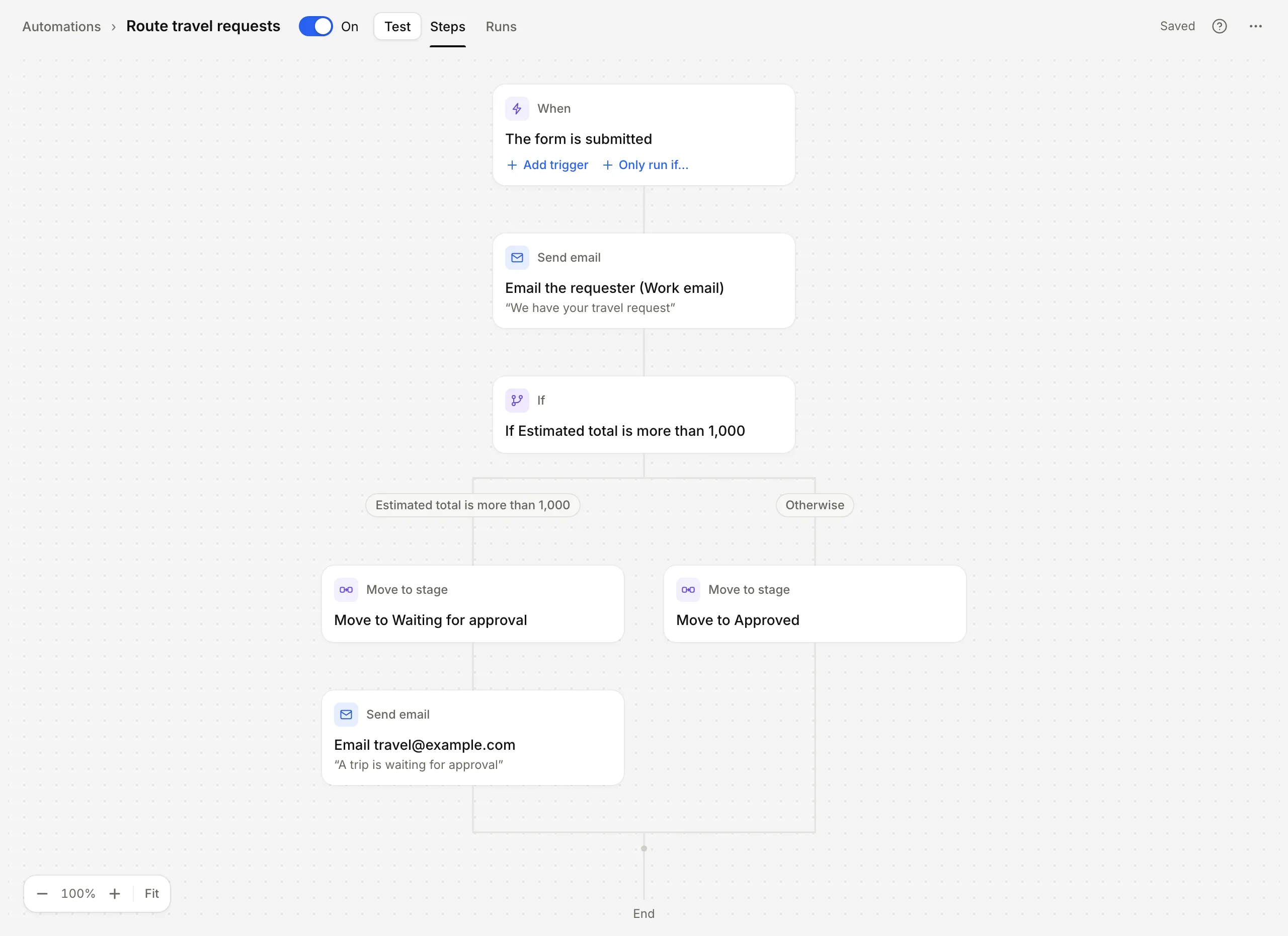
Entering a stage that needs approval sends the request to the budget holder by itself, so the automation doesn’t need a Request approval step. The extra email gives the travel desk a heads-up about trips they will book soon. To chase slow approvals, add an automation with In a stage too long on Waiting for approval for 2 days and a Remind approvers step, or start from the Remind and escalate approvals template. See approvals and steps.
Keep the traveller informed
- Approval is decided, Rejected: Send email to the Work email with the budget holder’s Comment.
- Stage changes to Booked: Send email with the Booking reference team field.
- Respondent status can show neutral labels such as “Received”, “Waiting for budget approval”, “Approved, being booked”, “Booked” and “Not going ahead”.
The See progress button comes with the notification Email the person who filled it in. That notification also stops a requester approving their own trip: an approver with the same address as the Work email is skipped. If you turn it on, remove the automation’s Send email step, or travellers get two acknowledgements.
FormWork doesn’t email the travel desk when a request is assigned or overdue unless you add an automation, such as the Remind the owner when a stage is overdue template.
Who can see travel requests
Everyone in the account can open every request, whichever group owns it. Groups decide who owns and approves work, not who can see it. Travellers and budget holders don’t need accounts, so keep the account to the travel desk and the admins who run it. See team members and roles.
Test these cases before you publish
- A request of exactly £1,000. “More than 1,000” sends it to Approved without approval; use Is at least if that’s wrong for your policy.
- A day trip with 0 hotel nights.
- A Budget holder’s email that matches the Work email, with and without the confirmation notification on.
- A budget holder who rejects, and one who never answers until the link expires.
- A Return date before the Depart date.
- A request moved back to the travel desk, corrected and sent for approval again.
- The automation turned off, so the request stays in New.
Check each run in automation runs.
Change it safely
Publish changes to questions, stages and the threshold as a new form version. Requests keep the questions they were answered with, while the process and automations follow the latest published version. The publish review asks where requests in a removed stage should go, and whether new owners and due times apply to requests already in a stage. The Form is submitted trigger runs once per request, so a new threshold doesn’t re-route requests already submitted.
What success looks like
Every request has a stage and an owner. Requests over £1,000 have an approval or rejection in their history. The travel desk books only from Approved and records the booking reference, and travellers can see progress without asking. Set your own turnaround targets; this page doesn’t claim any.
For spend requests with line items, see purchase approvals. Compare pricing, or talk through your travel policy.